
Overview
Notification preferences let you choose which EasyDash notifications reach you, by email and in the dashboard, for each organization you belong to.
Preferences are split into two groups:
- My activity: notifications about your own sites, servers and account, sent to you directly.
- Team activity: notifications about things other members of your organization did, which you receive because you are a stakeholder in that organization.
Each group has an Email and an In-app switch per notification type. Your choices apply only to the organization you set them in; your other organizations keep their own settings.
Where to find it
Notification Preferences is a card on the Settings tab of your profile. There are two ways to open it:
- Open the notifications bell in the header and click Preferences.
- Open your account menu (top right), click Profile, then go to the Settings tab.
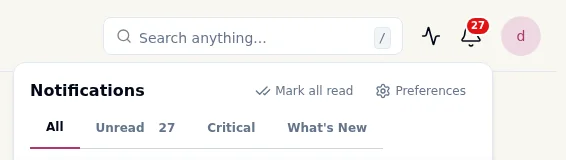
The card always shows the organization that is currently selected in the header. To manage another organization, switch to it with the organization switcher first.
You can only see and change your own preferences. Admins viewing another user’s profile do not see this card.
Notification types
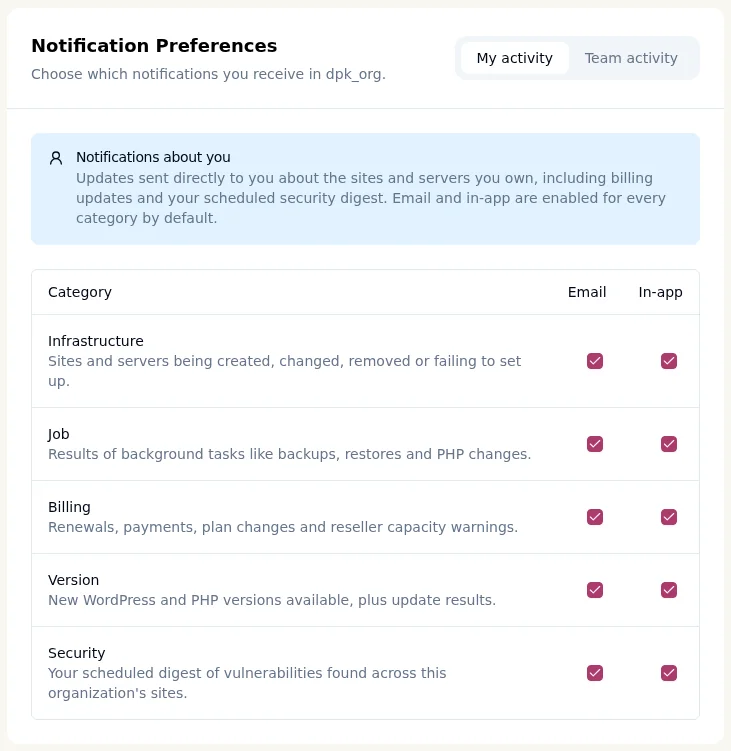
You can control five types of notification. Security appears under My activity only.
| Type | What it covers | My activity | Team activity |
|---|---|---|---|
| Infrastructure | Sites (and servers, where enabled) being created, changed, removed or failing to set up | Yes | Yes |
| Job | Results of background tasks such as backups, restores and PHP changes | Yes | Yes |
| Billing | Renewals, payments, plan changes and reseller capacity warnings | Yes | Yes |
| Version | New WordPress and PHP versions available, plus update results | Yes | Yes |
| Security | Your scheduled digest of vulnerabilities found across the organization’s sites | Yes | No |
Security has no Team activity option because the digest is always sent to you directly. Account notifications are not tied to an organization and cannot be turned off here.
Defaults
Everything is on by default except Team activity email, which is on only for Billing. This keeps your inbox focused while a failed payment still reaches the whole team.
| Type | My activity: Email | My activity: In-app | Team activity: Email | Team activity: In-app |
|---|---|---|---|---|
| Infrastructure | On | On | Off | On |
| Job | On | On | Off | On |
| Billing | On | On | On | On |
| Version | On | On | Off | On |
| Security | On | On | Not offered | Not offered |
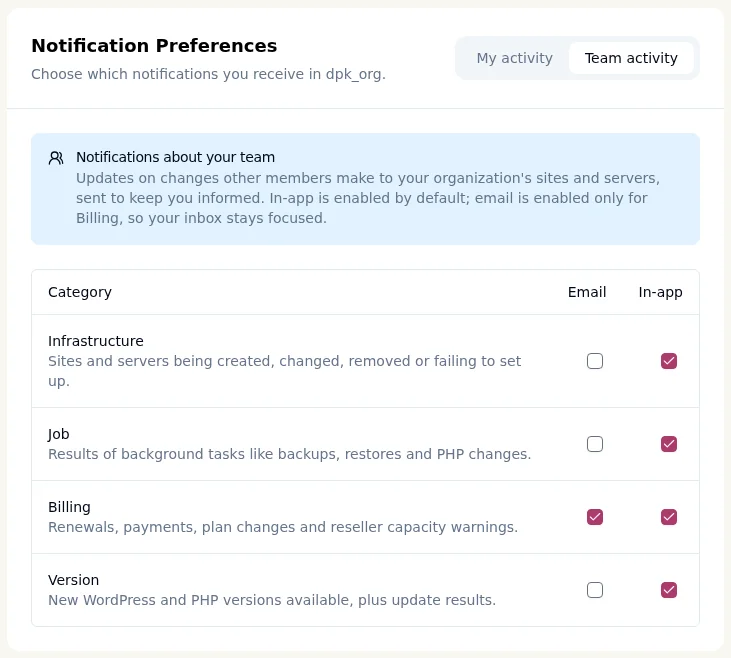
You only need to visit this page if you want something different from these defaults.
Who receives Team activity: the organization owner, Organization Admins and Organization Managers. If you are an Organization User, you receive notifications about your own activity only, so the Team activity settings have no effect for you.
Changing your preferences
Each change saves immediately; there is no Save button.
- Select the organization you want to manage in the header.
- Open Notification Preferences (bell, then Preferences).
- Choose the My activity or Team activity tab.
- Tick or untick the Email or In-app box for a notification type.
- Wait for the confirmation message, for example “Job email notifications for team activity turned off.”
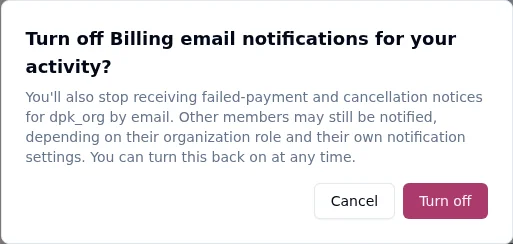
Turning off Billing under My activity asks you to confirm first. If you confirm, you also stop receiving failed-payment and cancellation notices for that organization on that channel. Other members may still receive them, depending on their role and their own settings.
If a change cannot be saved, an error message appears and the box returns to its previous state. Try again, or refresh the page.
FAQs
I belong to several organizations. Do my settings apply to all of them?
No. Each organization has its own settings. Switch organizations in the header to change the others.
I turned off email for a type. Will I still see it in the dashboard?
Yes, unless you also turn off In-app. Email and In-app are independent.
I changed Team activity settings but nothing is different. Why?
Team activity reaches only the organization owner, Organization Admins and Organization Managers. Organization Users do not receive it, whatever the settings say.
Can I stop the security digest?
Yes. Untick Security under My activity for Email, In-app or both.
Can an admin change my notification preferences?
No. Only you can view or change your own preferences.
Is there anything I cannot turn off?
Account notifications. They are not tied to an organization, so they always reach you.