
EasyEngine Dashboard shows you which WordPress sites on your EasyEngine servers run vulnerable plugins, themes or WordPress core versions. Security Advisories arrives with EasyEngine Dashboard v3.0, released on October 12, 2026, and lets you update an affected plugin or theme from the same screen.
Somewhere on one of your sites is a plugin nobody has thought about in a year. It was installed for a campaign or a quick test, and it still runs the version it had back then. When a security advisory is published for that version, nothing on the site tells you. Security Advisories is built for that plugin.
What EasyEngine Dashboard checks
Each night, during its daily refresh, the Dashboard attempts to read the installed plugins, themes and WordPress version on eligible live WordPress sites, then compares that inventory against published security advisories. It uses read-only commands, so the scan changes nothing on the site and crawls no pages.
PHP, HTML and WP Cloud sites aren’t covered. A site that couldn’t be scanned (not Live, unreachable or locked) is listed with the reason.
Where findings show up
Findings appear at organization, server and site level, and in an email digest when something changes.
- Organization: findings for the organization’s WordPress sites under Settings → Security, the place to start. The report also shows sites that could not be scanned, and why.
- Server: each server’s Security tab, for that server’s sites.
- Sites list: a sortable Security column shows each site’s worst findings, such as “4 High”, or “None known” for a clean site.
- Site page: a badge beside the site’s status, a Security Advisories card on the Overview tab, and a full Security tab.
- Security digest: site owners and the organization’s owner, admins and managers get an email when something changes. It carries severity counts in the subject line, what changed, and the findings as a CSV. If nothing has changed, the digest is re-sent at most weekly.
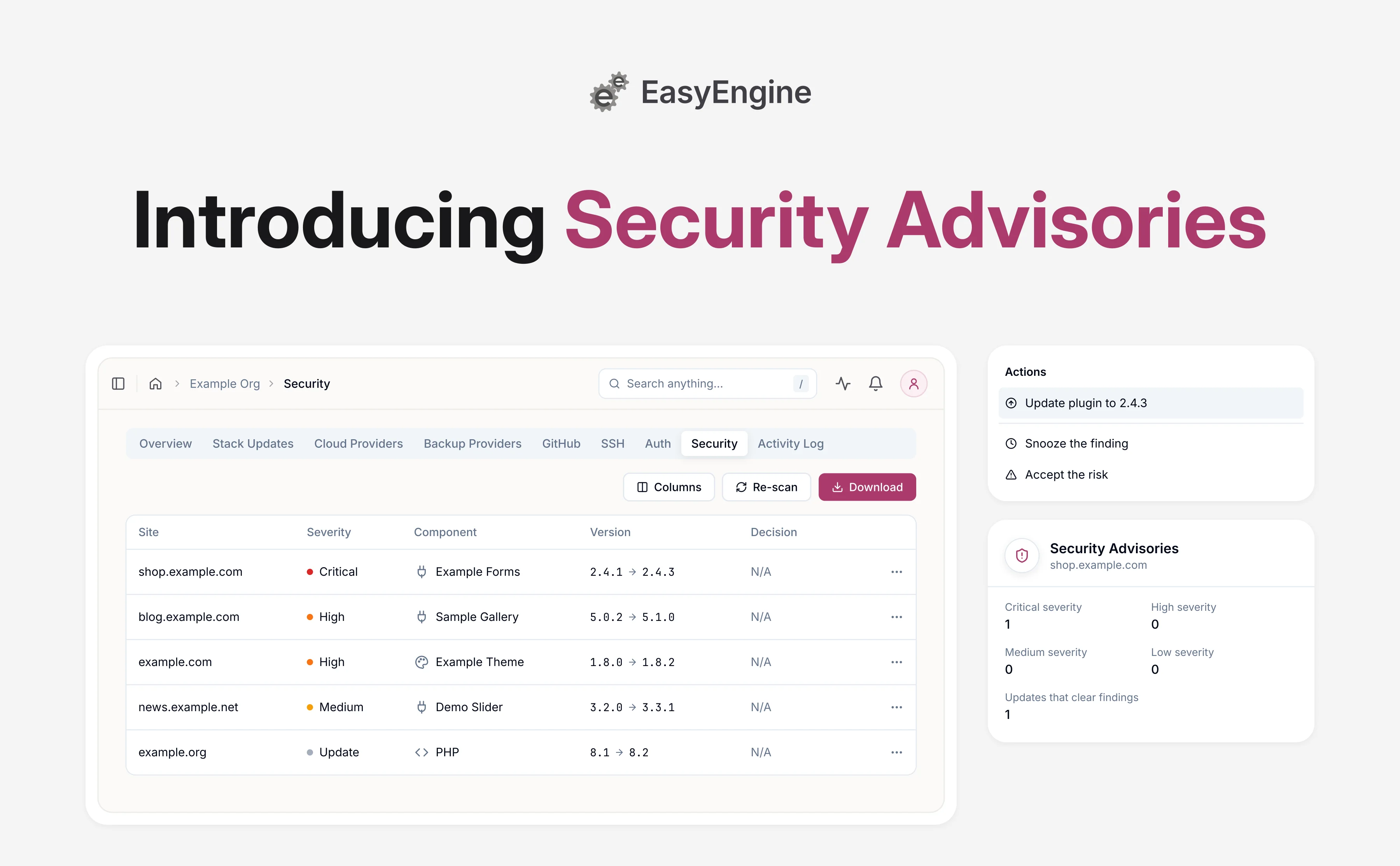
Each row gives the severity as the advisory rates it, the component, the installed and target versions, and a link to the advisory. Use Download to save the report as a CSV, or Re-scan to run a fresh check without waiting for the nightly one.
Fix vulnerable plugins and themes, or set a finding aside
If you can manage a site, the actions menu on each plugin or theme row offers Update plugin to … or Update theme to …. When the update finishes, the Dashboard re-checks the site, so a fixed row clears without waiting for the nightly scan.
When patched-version data is available, the Dashboard suggests the lowest release that clears every known advisory, without going beyond the update the site offers. Otherwise, it uses the update reported by the site. If the site reports no update, the finding has no update action.
Take a backup from the site’s Backup & Restore tab before you update. CI/CD sites are left to their repository workflow.
If a finding can’t be fixed yet, organization owners, admins and managers can use the same menu:
- Snooze the finding: hide it from the default view and the digest for as many days as you enter in Snooze for (days), 30 by default and at most 365.
- Accept the risk: hide it the same way until someone revokes the decision, for example because the vulnerable feature is turned off.
- Revoke decision: bring the finding back.
Decided findings stop counting toward the badges, but stay in the full report and the downloaded CSV.
Keeping PHP on supported versions
The Security tab also lists, under Updates and without a severity, maintenance that becomes a security problem later. That means a newer WordPress release, or a PHP version that is past the end of its security support or within 90 days of it.
For WordPress, the bulk core updates from EasyEngine Dashboard v3.0 let you review eligible sites, choose which to include, and then queue the selected WordPress core updates.
To move many sites at once to a newer PHP version, organization owners, admins and managers can use Update PHP Version. It’s on a server’s Configurations tab and the organization’s Stack Updates tab. Pick the current and target PHP versions, review the affected sites, and queue the change. On the Stack Updates tab, you can also limit the run to one Server category.
EasyEngine v4.13.3, released on October 21, 2026, ships patched PHP 8.2 to 8.5 images for two critical vulnerabilities. PHP made no release for 8.1 and older. Security Advisories doesn’t check PHP’s own advisories, but sites on those older versions already sit under Updates.
Once a server runs v4.13.3, a bulk PHP update moves those sites to a patched version. An 8.1 site’s Updates row suggests 8.2, the next version the Dashboard supports, but aim for 8.3 or newer. PHP 8.2’s security support ends on December 31, 2026, so it shows under Updates too.
Where the advisory data comes from
Advisory data is copyright 2012-2026 Defiant Inc., used under the Wordfence Intelligence Terms and Conditions. Records that carry a CVE are also copyright 1999-2026 The MITRE Corporation, used under the CVE Terms of Use.
The same notices appear in an Advisory data licences section under the report, and in downloaded reports and digest attachments.
Get started with Security Advisories
Security Advisories is switched on for every organization, existing ones included, and isn’t a paid add-on, so no action is required to get it. Start under Settings → Security, which brings the findings for your WordPress sites into one report, along with any site that could not be scanned. Owners and admins can turn the feature off, or back on, in the same place.
The digest’s email and in-app notices are on by default. To turn either off, use the Security row under My activity in your Notification Preferences. Findings stay on the Dashboard either way.
Your servers stay yours, and EasyEngine Dashboard keeps watch over what runs on them. If you are curious whether it fits your setup, our team is glad to walk you through it.
Frequently asked questions
Who in my organization can see security findings and act on them?
Everyone in the organization sees findings for the sites they can open, and can use Re-scan on a site they can edit. Anyone who can manage a site can update an affected plugin or theme from its report. Organization owners, admins and managers can also run organization scans, snooze or accept a finding, and revoke that decision.
How often does EasyEngine Dashboard check my sites for advisories?
Each WordPress site on your EasyEngine servers is checked every night, during the Dashboard’s daily refresh. Use Re-scan to run a check at any time, either a Full scan or a quicker Re-match stored inventory. A re-match does not connect to the site, so it will not notice a plugin installed since the last full scan.
Does Security Advisories update vulnerable plugins automatically?
No. Security Advisories does not update anything by itself. From the report, an update runs only when someone who can manage the site picks Update plugin to … or Update theme to ….
WordPress core and PHP rows have no update item, because both have their own update controls in the Dashboard. On CI/CD sites, the menu shows a note instead of an update, since those sites are left to their repository workflow.
Which sites and risks does Security Advisories not cover?
It checks WordPress sites only, so PHP, HTML and WP Cloud sites are not scanned. It does not check PHP’s own advisories either, though a PHP version near or past the end of its security support shows under Updates. A site that could not be scanned is listed with the reason, so a missing scan is not mistaken for a clean result.
Security Advisories is a safety net, not a certificate of health. It cannot see a flaw nobody has disclosed yet, or a problem in custom code written for your site.
Links: Security Advisories documentation | EasyEngine Dashboard Features | Get in touch
On this page