
What Whitelabel gives you
Whitelabel lets you run EasyEngine Dashboard under your own brand and sell hosting plans to your own clients. Your clients log in to a dashboard that carries your name, logo, colors and domain, and they pay you directly.
| Area | What you can customize |
|---|---|
| Brand identity | App name, logo, favicon, browser tab title and link-preview description |
| Look and feel | Primary, background, link and sidebar colors for light and dark mode, plus the interface font |
| Domain | Your own domain (for example dash.youragency.com) or a ready-made address on our default domain |
| Emails | Sender name, reply-to address, your own SMTP account, header and footer content, social links |
| Support links | Documentation, FAQ, product updates, feature requests, contact support, terms, privacy and refund policy |
| Plans and billing | Your own plan names, prices and limits, charged through your own Stripe account |
Availability
Whitelabel is included in the Agency plan. Lower plans do not include it, and the Whitelabel and Plans pages stay locked until you upgrade.
To start reselling you need both of these in place:
An active Agency subscription.
Your own Stripe account connected under Payments.
Once both are done you can create plans, invite client organizations and let them buy from you. Nesting has no depth limit: a client on your Agency plan can become a reseller too, with its own Stripe account and its own clients.
Onboarding your first client organization
Five steps take you from a fresh Agency subscription to a paying client. Only the organization owner can do steps 1 to 4.
Connect Stripe → Set up branding → Create plans → Create client org → Client picks a plan and pays you
Step 1: Connect Stripe
Create a Stripe account at stripe.com if you do not have one.
In your Stripe dashboard, open Developers, then API keys. Copy the Publishable key and the Secret key.
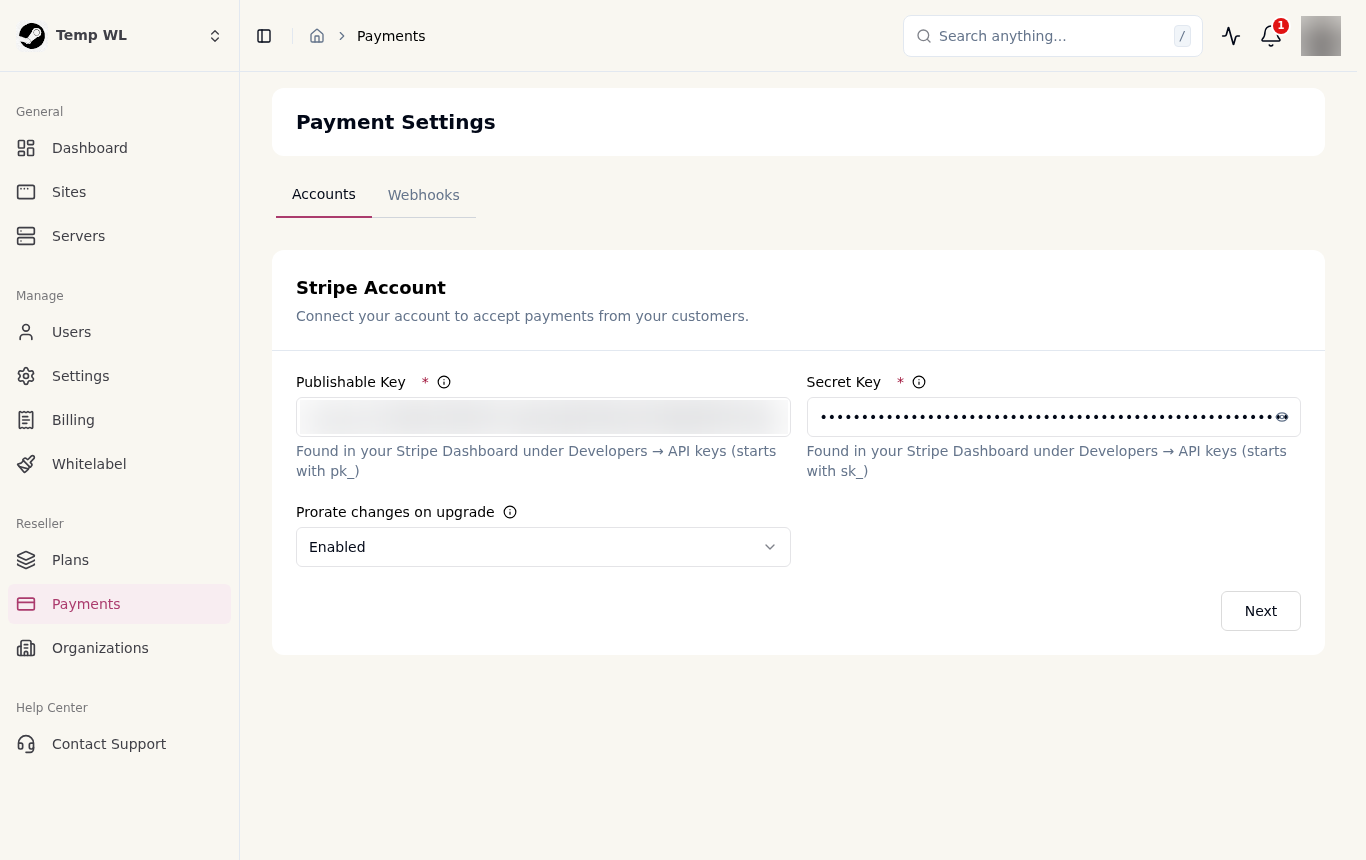
In EasyEngine Dashboard, open Payments and paste both keys under Stripe Account, choose whether upgrades are prorated (enabled by default), then click Next.
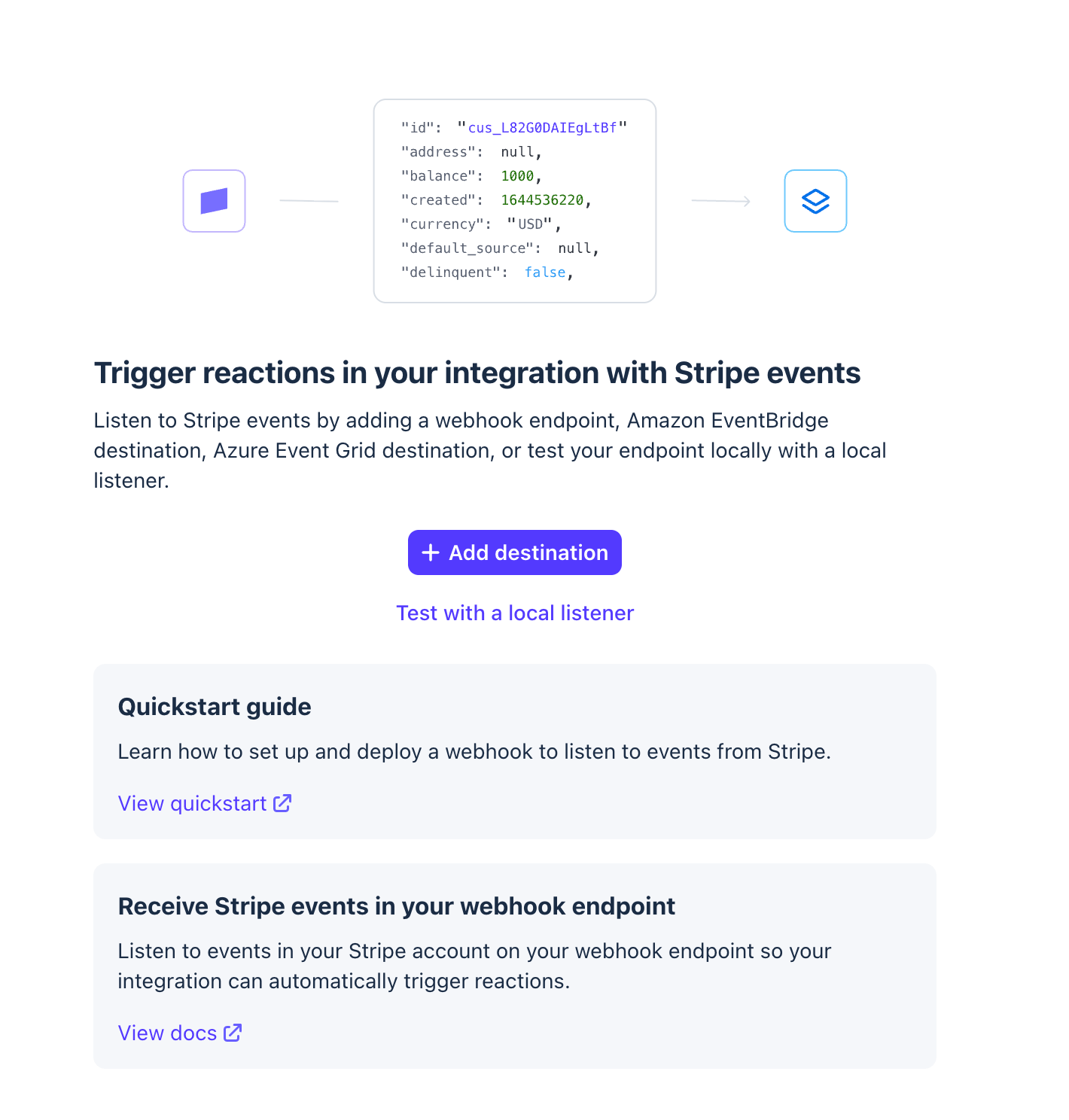
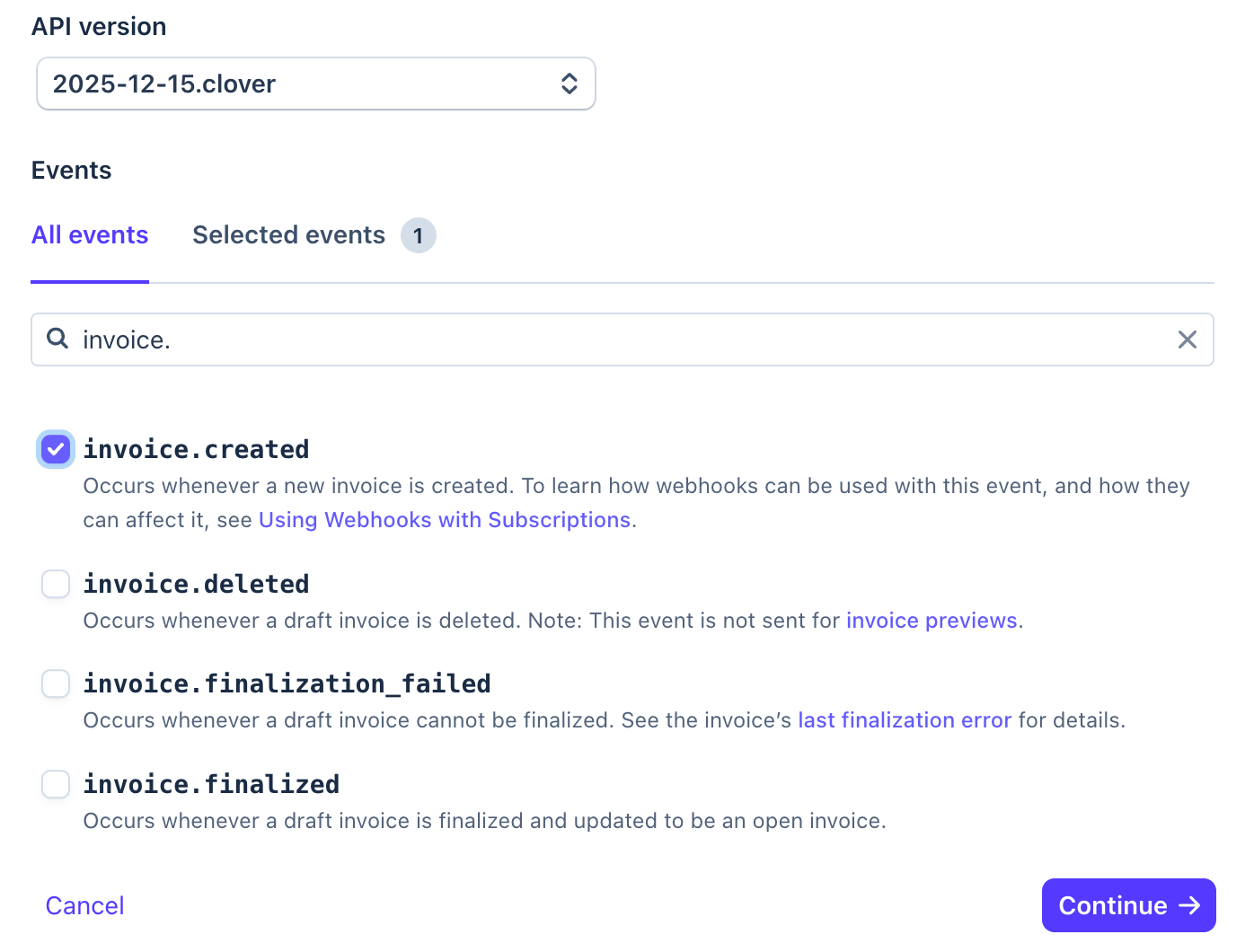
In Stripe, go to Developers, then Webhooks, and click Add destination. On the next screen, under the Events section, choose the events listed in the Webhook tab of EasyEngine Dashboard.
Copy the Webhook URL shown on the next screen under Webhook Settings, paste it as the endpoint URL in Stripe, and copy the signing secret it gives you.
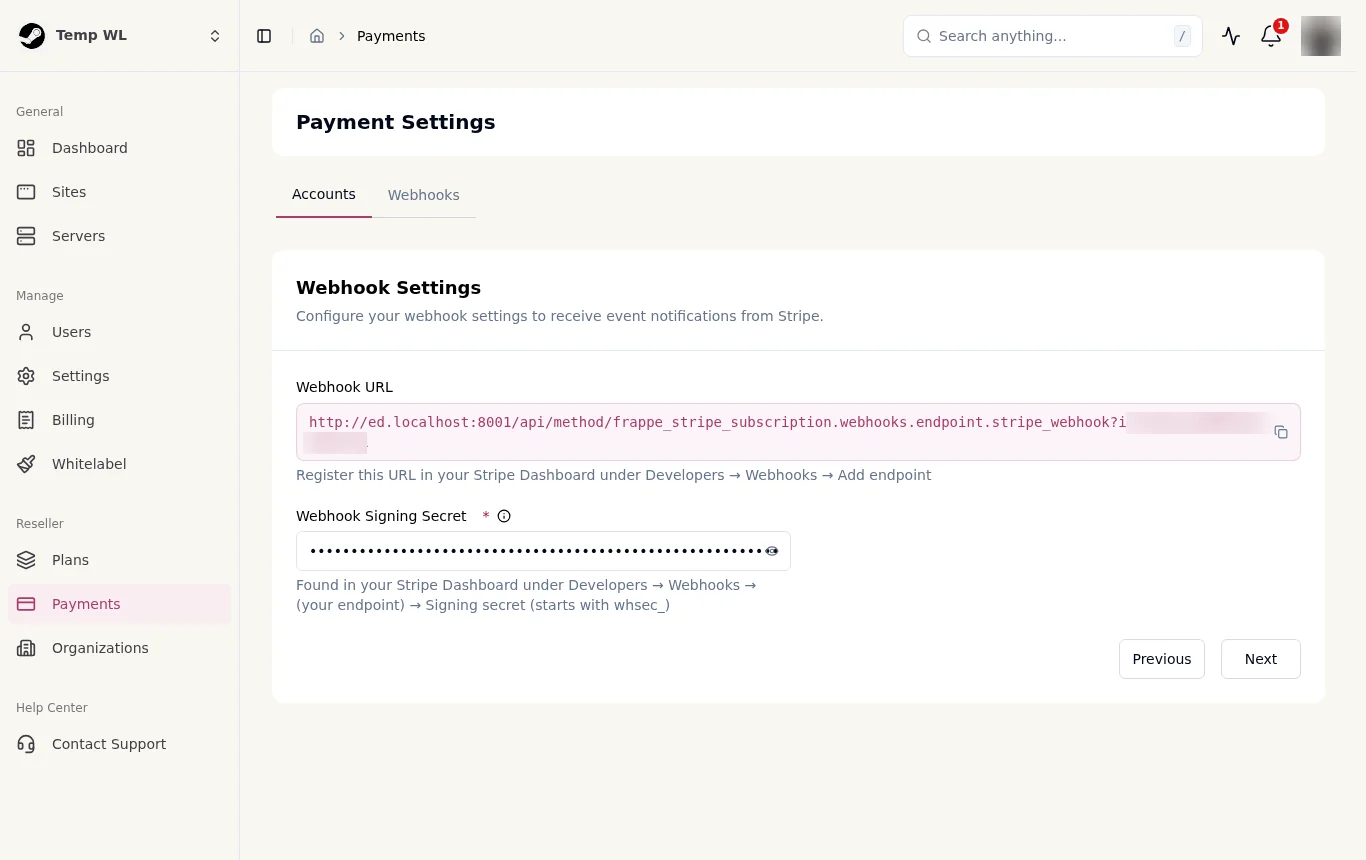
Paste that signing secret into the Webhook Signing Secret field on the same screen and save.
Your clients pay into this Stripe account. EasyEngine never sees their card details.
Step 2: Set up your branding
Open Whitelabel and work through the tabs:
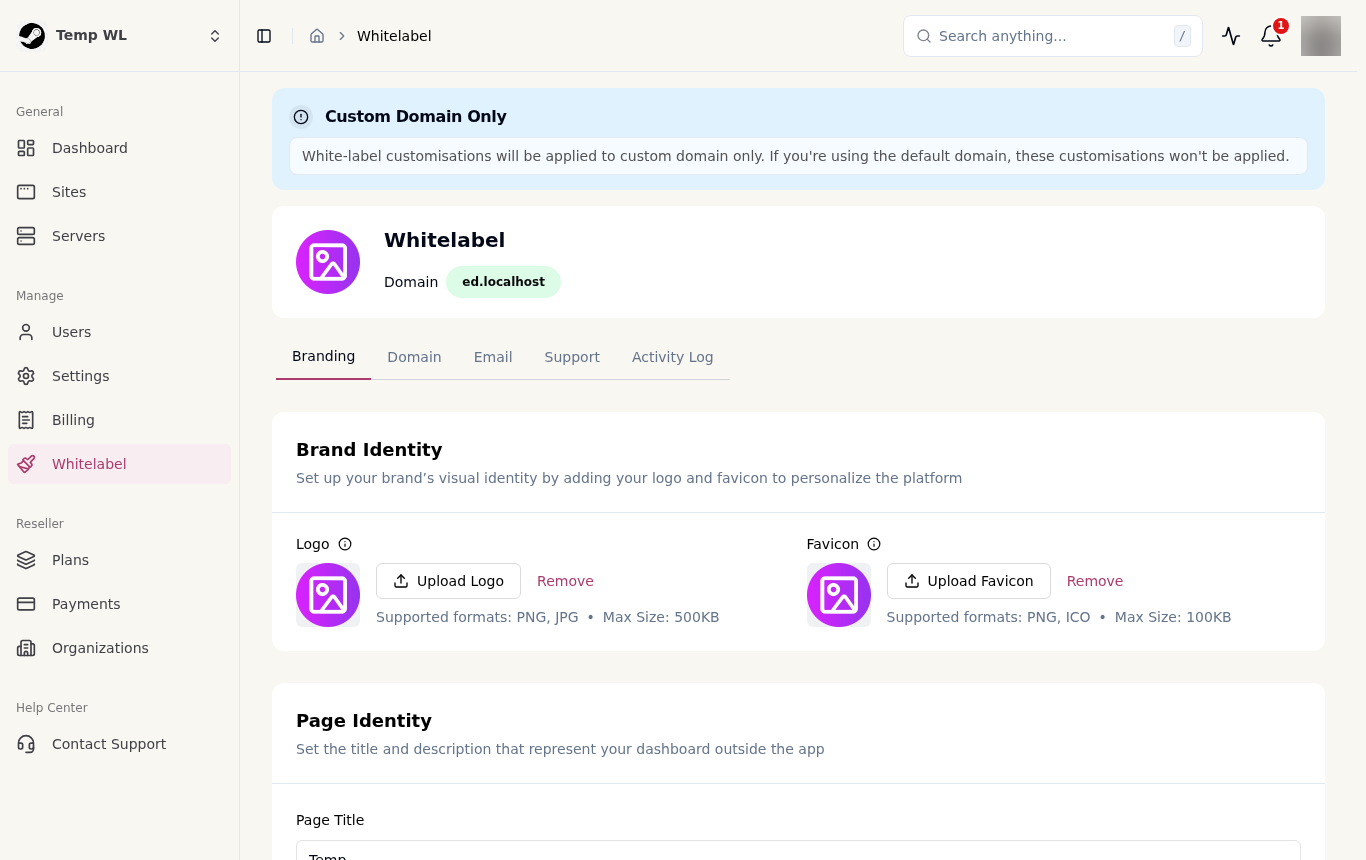
Branding: upload your logo (up to 500 KB) and favicon (up to 100 KB), set the app name, page title, colors and font. The color picker warns you when a combination fails accessibility contrast.
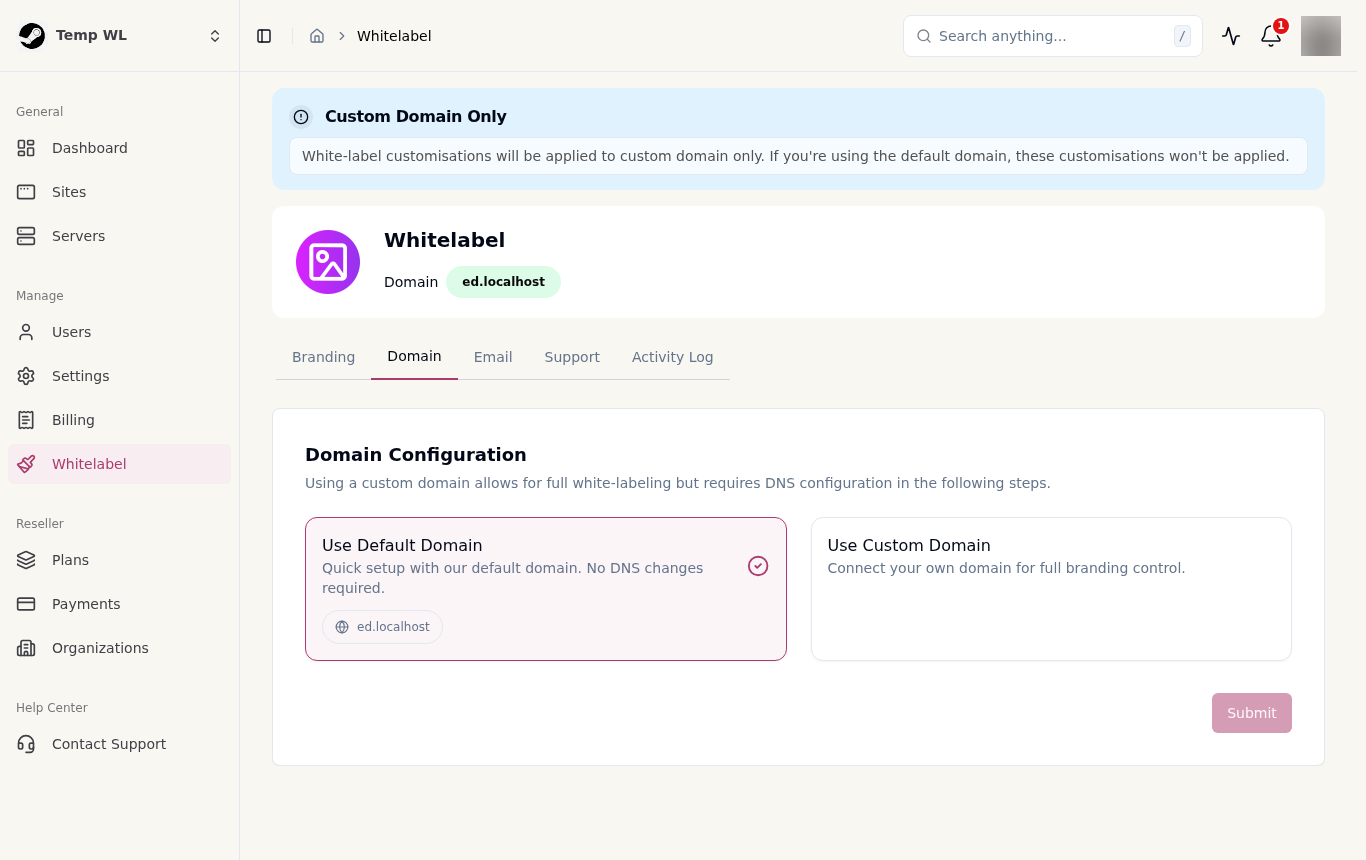
Domain: pick the default domain for a quick start, or choose Custom Domain and add the two CNAME records shown to your DNS. Click Check to verify each record. SSL is issued automatically once both records pass.
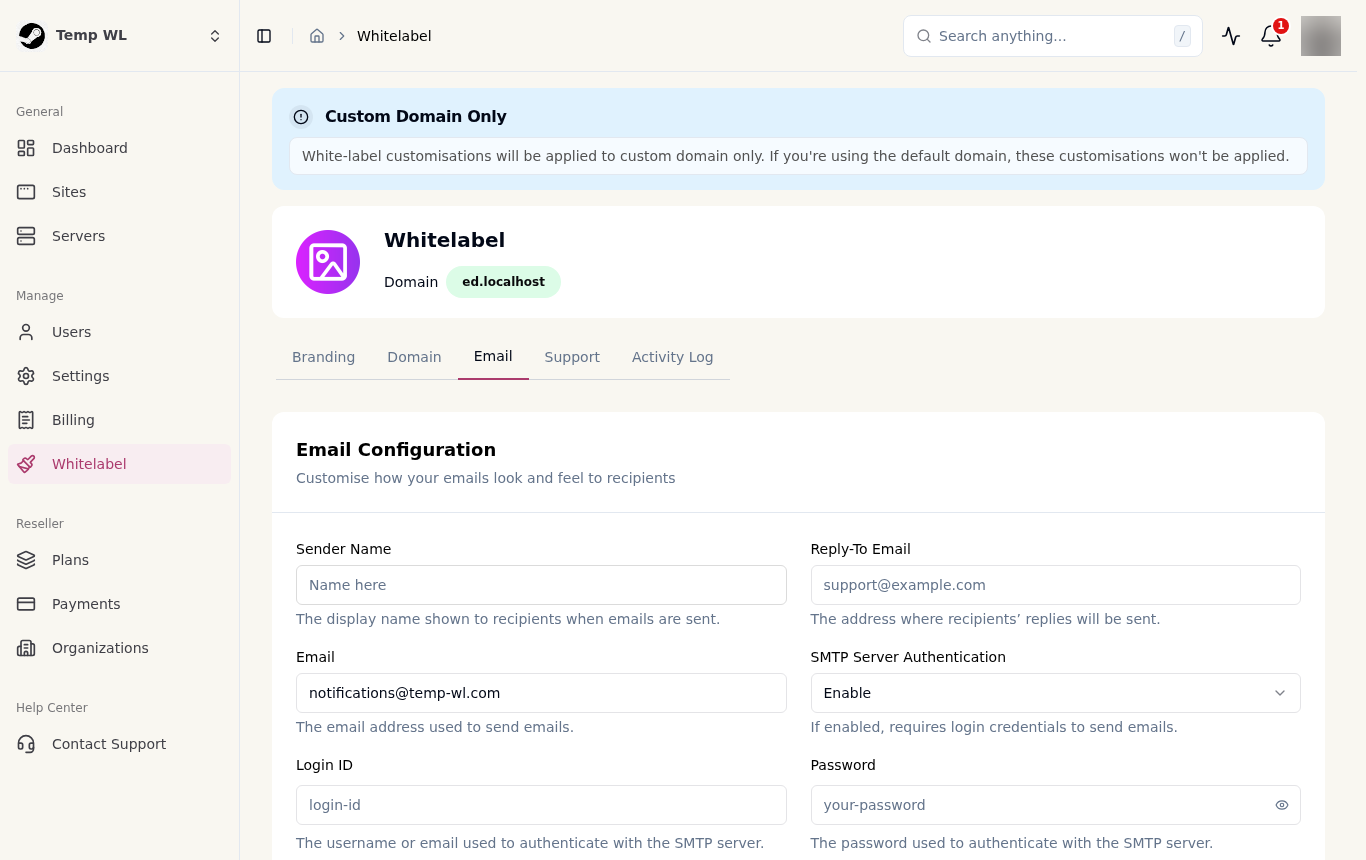
Email: set the sender name and reply-to address. Add your own SMTP account if you want emails to come from your domain.
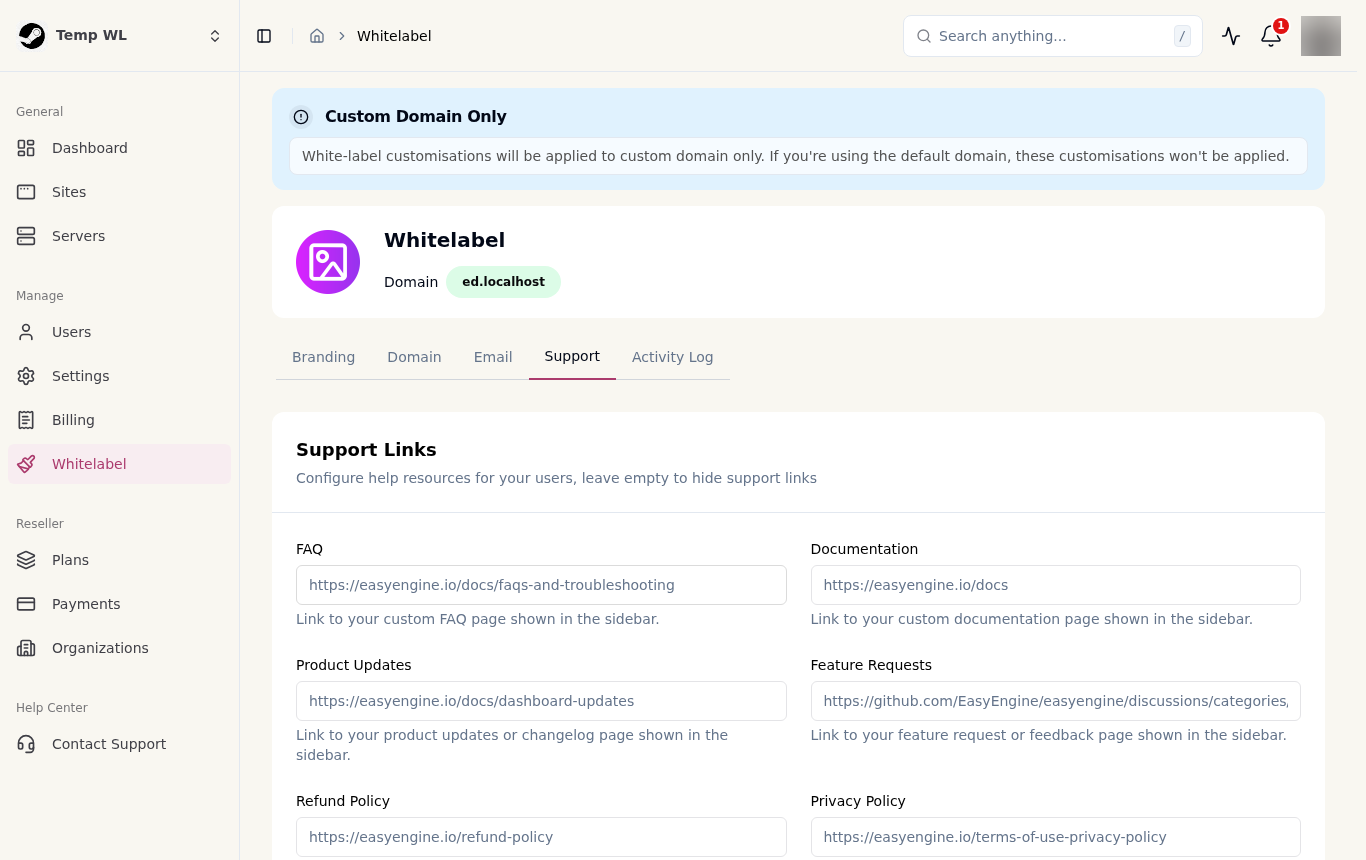
Support: add links to your help pages. Leave a field empty to hide that link.
Step 3: Create your plans
In EasyEngine Dashboard, open Plans and create your plans. Set monthly price in USD, site, server and member limits, and which features are included.
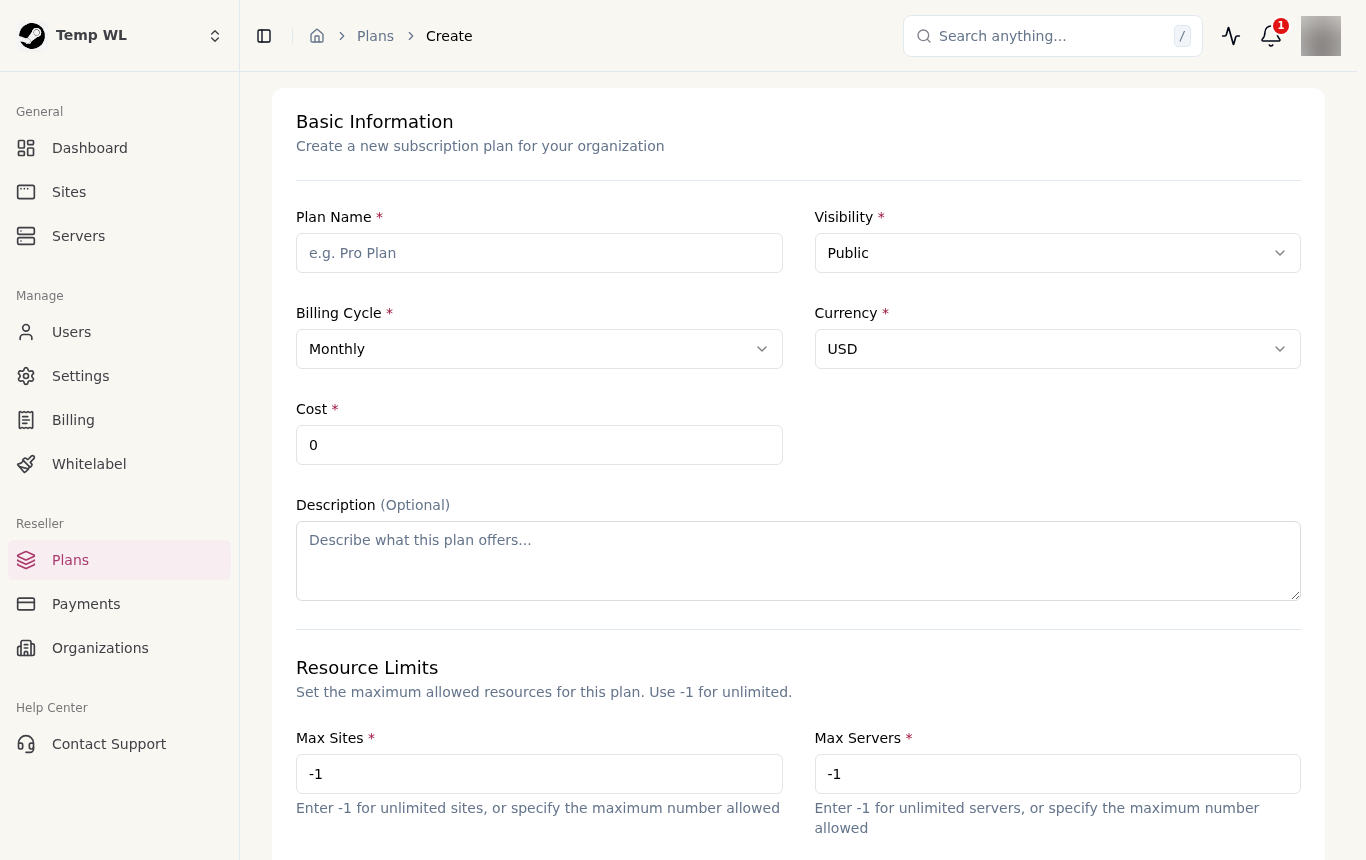
Set one plan as the free default. New clients start on it, and without one they cannot create anything.
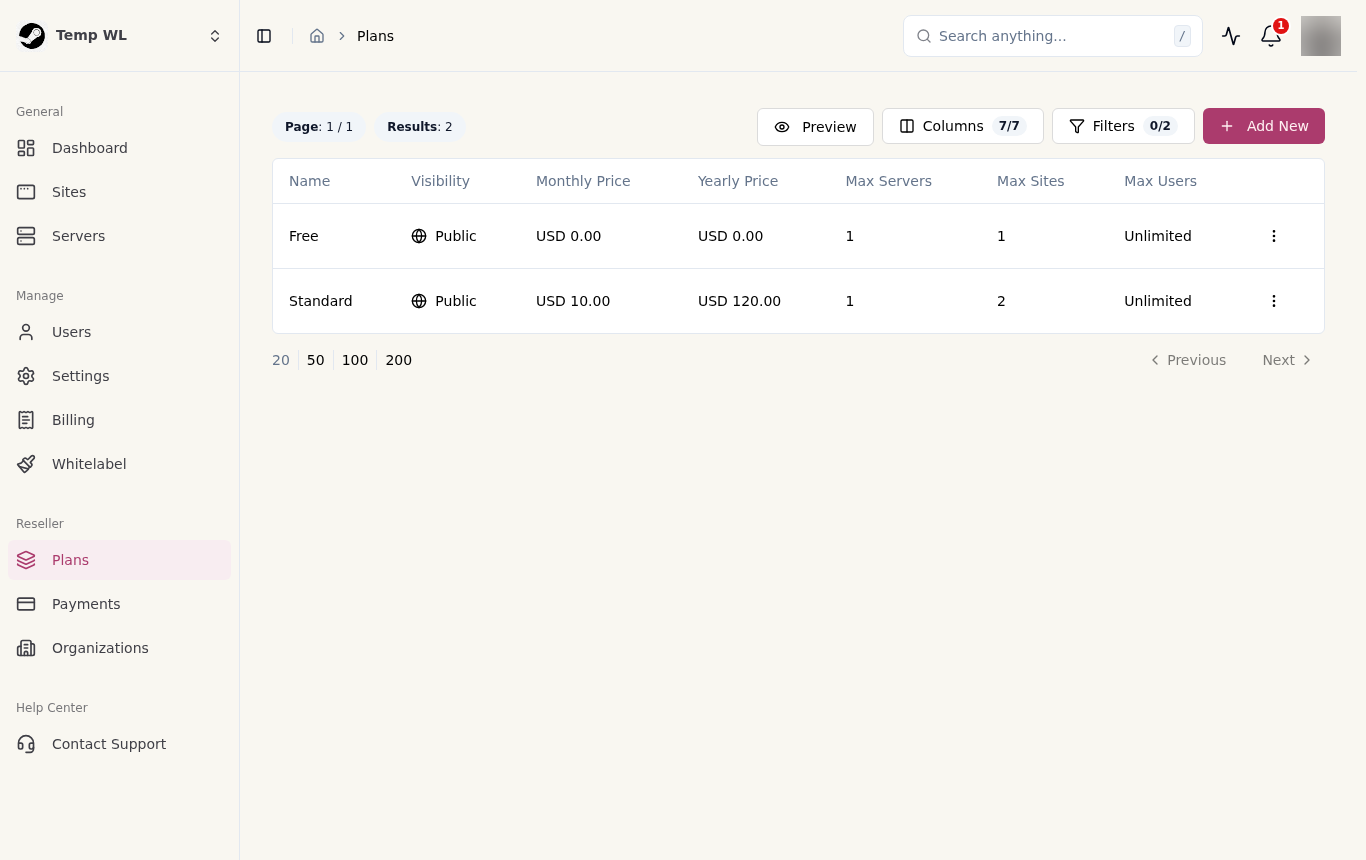
You cannot sell more capacity than your own Agency plan gives you. Plans that would exceed your remaining sites or servers are hidden from clients.
Step 4: Create the client organization
Anyone who signs up on your custom domain is created against your organization, so their organization lands under yours automatically. Use the steps below only when you want to add a client yourself.
Click the organization picker in the top-left corner, or open Reseller > Organizations in the sidebar, then click Create Organization.
Enter the client’s name and choose your organization as the parent.
Invite the client’s users by the email they registered with, and assign them roles. Make the client’s main contact the owner so they can manage their own billing.
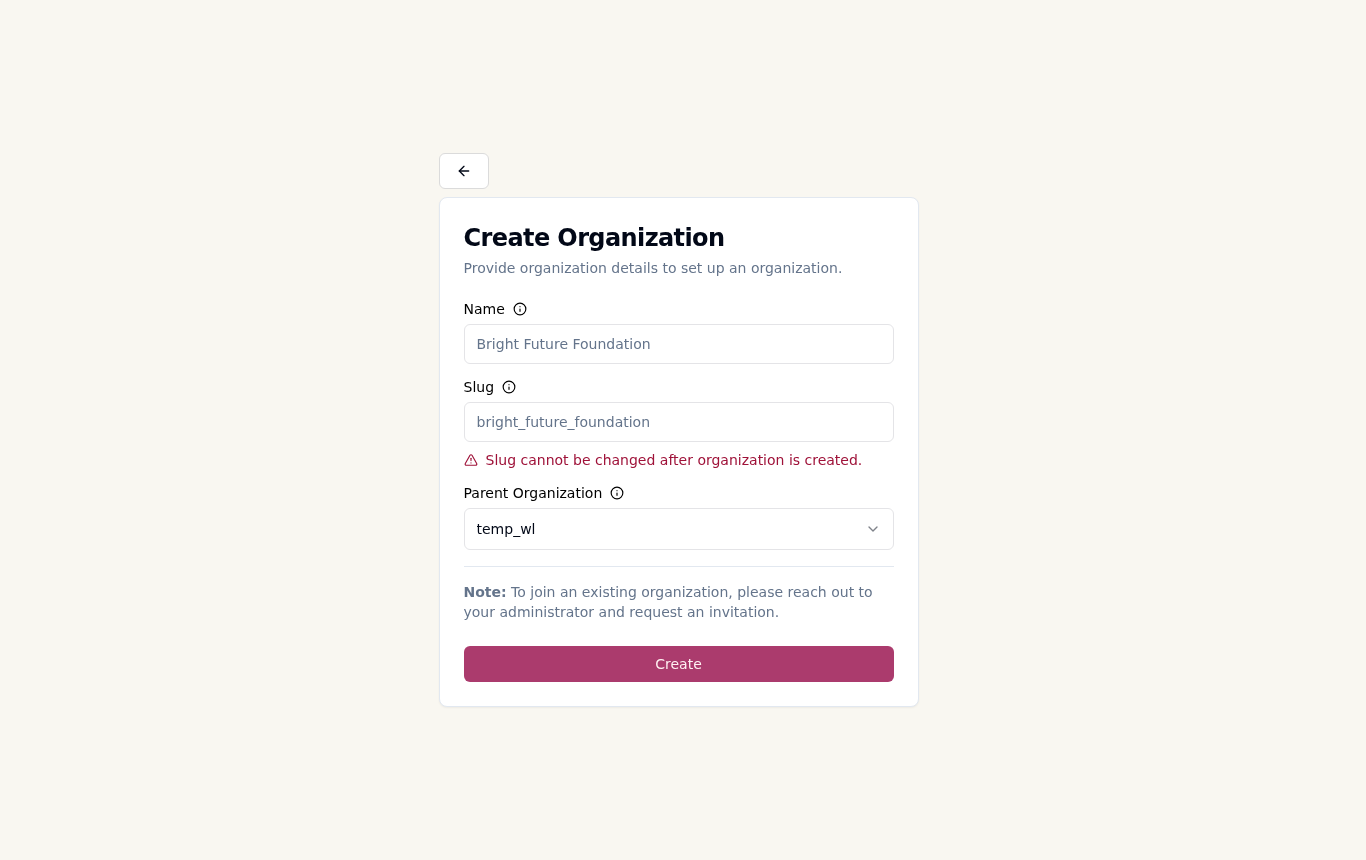
Note: You can see all your clients’ organizations under Reseller > Organizations in the sidebar.
Step 5: The client subscribes
The client logs in at your branded domain, sees only your plans on the Billing page, and pays through checkout. Payment lands in your Stripe account and their limits update within a couple of minutes. They will never see EasyEngine pricing or plans from other resellers.
Billing and configuration
You pay EasyEngine for your Agency plan. Your clients pay you. The two never mix.
How money flows
| Who pays | To whom | Through |
|---|---|---|
| You (the agency) | EasyEngine | EasyEngine’s checkout, for your Agency plan |
| Your clients | You | Your Stripe account, for the plans you created |
| Your clients’ clients (if they resell) | Your client | Their own Stripe account |
Plan changes for your clients
| Change | When it takes effect | Charge |
|---|---|---|
| Upgrade | Immediately | Prorated difference, if proration is enabled in Payments |
| Downgrade | End of the current billing period | None; no refund for the current period |
| Cancel | End of the current billing period | None; no refund for the current period |
| Reactivate or undo a downgrade | Immediately, if done before the period ends | None |
All prices are in USD.
Capacity
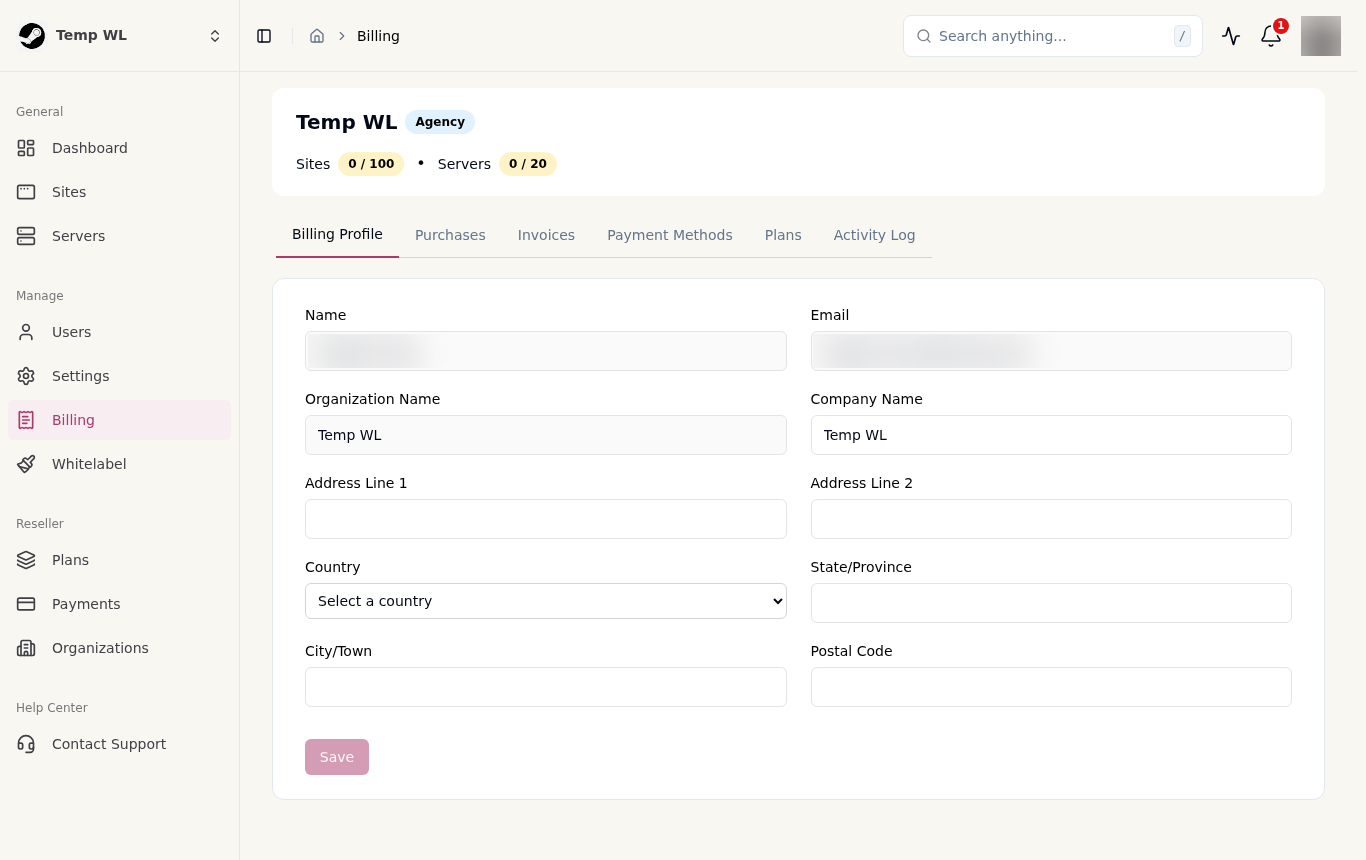
Your Agency plan sets a pool of sites, servers and members. Everything you use yourself plus everything you have sold to clients comes out of that pool. When you reach 70 percent of any limit you get a warning email. When a plan no longer fits the remaining pool it disappears from your clients’ pricing page, and checkout blocks it as a final safeguard. To sell more, upgrade your own plan or trim unused client plans.
Who can change what
| Action | Who |
|---|---|
| Connect Stripe, create plans, edit branding | Organization owner |
| Upgrade, downgrade or cancel a subscription | Organization owner |
| View billing and invoices | Owner and admins |
| Invite and manage members | Owner and admins |
Branding settings worth knowing
Colors: you set light and dark mode separately. Use the reset buttons to return to defaults.
Domain: switching between the default and a custom domain is allowed at any time. Your clients’ bookmarks to the old address stop working, so tell them first.
Emails: every notification your clients receive, from invitations to invoices and backup alerts, carries your branding. Without your own SMTP account, emails still show your name but are sent from our mail servers.
Support links: empty fields hide the link. Fill in Terms, Privacy Policy and Refund Policy so your clients see yours, not ours.
Troubleshooting
Most issues come down to one of three things: the plan, Stripe, or DNS. Check those first.
| Symptom | Likely cause | Fix |
|---|---|---|
| Whitelabel or Plans page is locked | Your plan does not include whitelabel | Upgrade to the Agency plan under Billing > Plans |
| “This feature is not available in this plan” when saving branding | Your Agency subscription lapsed or is not active | Check Billing for a failed payment or cancellation, then reactivate |
| Cannot create plans | Stripe is not connected, or you are not the owner | Complete all Payments fields including the webhook secret; ask the owner to do it |
| Plan shows in your list but clients cannot see it | It exceeds your remaining capacity | Upgrade your own plan or reduce limits on the plan |
| Client paid but their plan did not update | Stripe webhook is missing or has the wrong secret | Re-check the Webhook URL and signing secret in Payments and in Stripe |
| Client sees EasyEngine plans instead of yours | Client organization was created without you as parent | Recreate the client organization with your organization as parent |
| Client cannot create sites or servers | No free default plan, or their plan limit is reached | Set a default plan under Plans, or have them upgrade |
| Custom domain check fails | CNAME records not added or not propagated yet | Add both records exactly as shown, wait up to 24 hours, click Check again |
| Custom domain works but shows a certificate warning | The second (ACME) CNAME record is missing | Add the ACME record and click Check |
| Logo or favicon will not upload | File too large or wrong format | Logo under 500 KB, favicon under 100 KB, in a common image format (PNG preferred) |
| Colors rejected with a contrast warning | Text and background are too close in tone | Pick a darker or lighter shade until the warning clears |
| Branded emails not arriving | SMTP details are wrong, or the mail provider blocks the login | Re-enter server, port and password; enable app passwords or SMTP access with your provider |
| Branding not showing for a client | Client organization is not registered under yours (branding applies to your client orgs on any domain) | Recreate the client organization with your organization as parent, or have them sign up on your custom domain |
If none of these match, use the Contact Support link in your dashboard and include the organization name and the exact message you saw.