
When you remove a user from your organization, the system performs an ownership check to ensure no sites or servers are left without an owner. If the user owns any resources, you will be prompted to either transfer or delete them before the user can be removed.
This prevents accidental loss of access and ensures all sites and servers remain properly managed.
1. Removal Confirmation
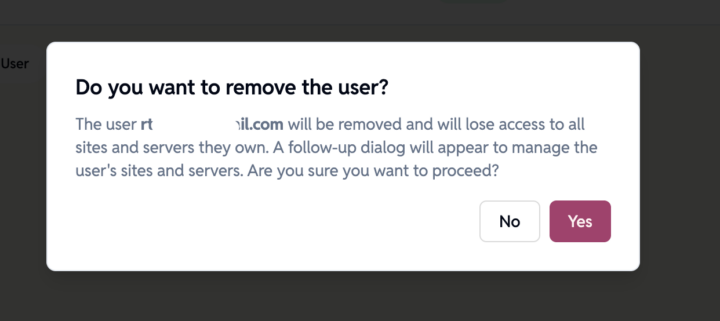
When you attempt to remove a user, a confirmation dialog appears:
Do you want to remove the user?
The user [email protected] will be removed and will lose access to all sites and servers they own. A follow-up dialog will appear to manage the user’s sites and servers.
If the user owns any resources, the removal process pauses and the next step appears automatically.
2. Manage Sites and Servers Owned by the User
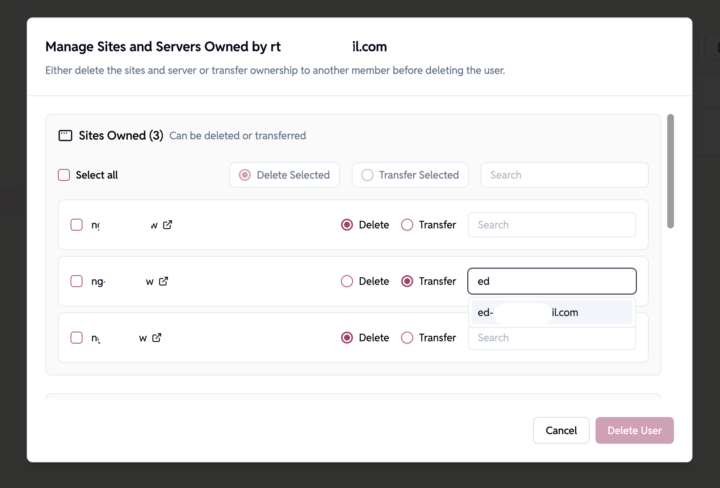
If the user is an owner of any sites or servers, a management dialog will appear showing all resources they own.
You must take action on each item before the user can be removed. You have two options:
Option A – Delete the Sites/Servers
Select the items you want to remove and click Delete Selected.
This permanently deletes the site or server from the dashboard and underlying infrastructure.
Option B – Transfer Ownership
Select Transfer and choose a new owner from the user list.
Ownership can only be transferred to another valid member of the organization.
You can:
- Select items individually
- Select all
- Delete or transfer in bulk
- Search for the new owner using the built-in search box
Once all sites and servers are reassigned or deleted, the Delete User button becomes available.
3. Complete User Removal
After all owned resources have been handled:
- Click Delete User
- The user is removed from the organization
- They immediately lose access to all dashboards, sites, and servers
This workflow ensures:
- No orphaned sites or servers exist without an owner
- Organizations stay secure and maintain proper ownership structures
- Accidental deletion or loss of access is prevented