
Overview
EasyDash implements a comprehensive permission system to control user access to different resources and functionalities. Permissions are managed through predefined roles, which bundle together sets of specific access rights. This structured approach ensures users have appropriate access based on their responsibilities while maintaining system security and thus reducing the risk of unauthorized actions.
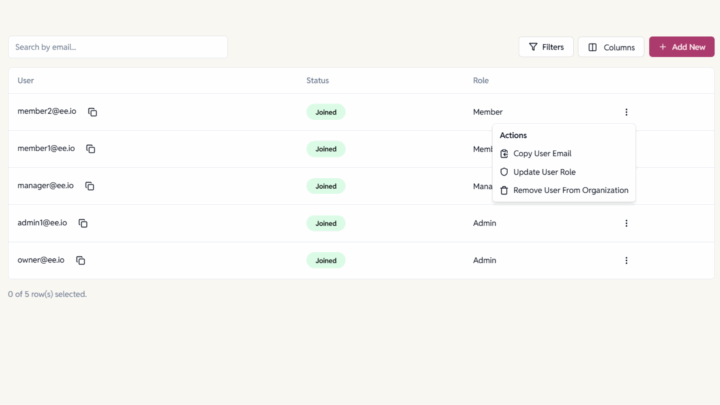
Types of Users
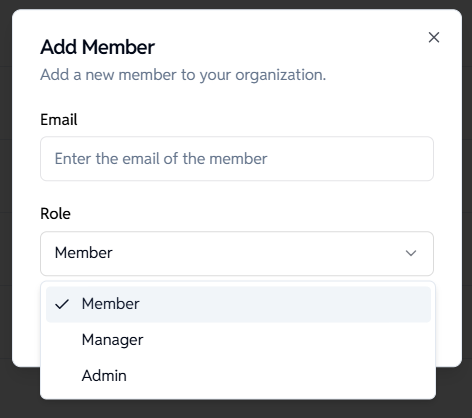
Owner
The person who creates the organization.
They have all the permissions of an Org Admin plus:
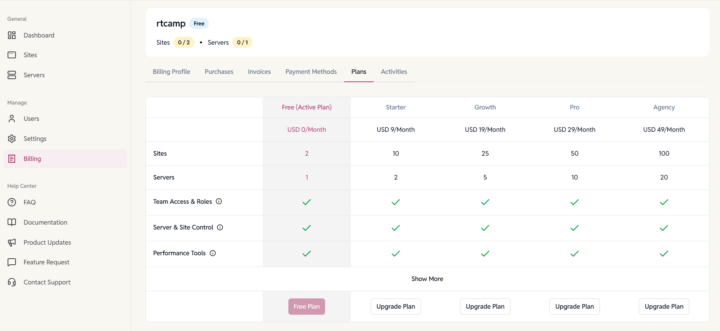
- Manage billing and subscriptions. Only the owner of the organization has access to billing.
Admin
Has the highest level of control within an organization. They can:
- Add servers and sites
- Manage team access
- View and edit everything in the org
- Cannot share servers
Manager
A step down from Admin. They can:
- View all servers and sites
- Create and manage sites only
- Cannot add servers
- Invite users
Member
A limited-access role focused on only the resources they’re shared into. They can:
- Create sites (only on development servers)
- Manage sites they created
- Access sites shared with them
What Access Looks Like
| Role | View Sites | Add Sites | Add Server | Share Access | Billing |
| Org Owner | ✅ | ✅ | ✅ | ✅ | ✅ |
| Org Admin | ✅ | ✅ | ✅ | ✅ (on Sites only) | ❌ |
| Org Manager | ✅ | ✅ | ❌ | ✅ (on Sites only) | ❌ |
| Org Member | ✅ (shared or owned) | ✅ (on Development server only) | ❌ | ❌ | ❌ |
Types of Permissions (Resource-Level Permissions)
Servers:
Only Owner and Admins can create servers. The server owner has full control over the server along with Organization Admins
Sites:
You can share individual sites with teammates, giving them:
Read – view site details
Write – make changes
Share – re-share with others
- EE Site creators always get full access to the site settings.
- WPC Site creators can’t change diskspace, php processes as they are chargeable and only Admins can modify.
Restriction on Creating Sites on Servers
On Production Servers:
Only Admins and Managers can create sites here, ensuring tight control over live environments.
On Development Servers:
All users, including Members — can create sites on these servers, making them ideal for testing and collaboration.
Inheritance and Ownership
- Org Admins always have top-level access across servers and sites.
- Site owners control access to their own sites.
- Resource-specific permissions allow granular sharing without role changes.
Sharing Sites

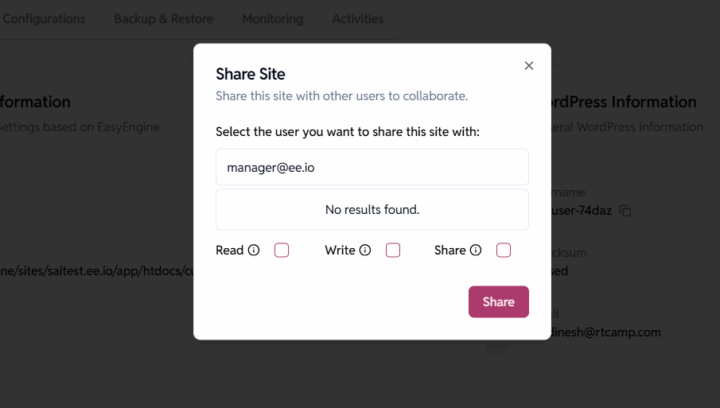
You can share sites with others and assign different levels of access:
| Share Type | What They Can Do |
| Shared Read | Can view site info, logs. No edits. |
| Shared Write | Can edit settings like PHP version, cache, backups, etc. Cannot share or change ownership. |
| Shared With Share Permissions | Full control—same as Site Owner. Can also share the site with others and transfer ownership. |
Best Practices
- Only give users the access they truly need
- Review permissions regularly
- Keep a simple internal doc of who has what
Common Issues
| Problem | Likely Cause | How to Fix |
| “Access Denied” | Missing role or share permission | Check user’s role and sharing settings |
| Can’t see a server or site | Not shared or incorrect role | Use the “Share” option or update role |
| Can’t update site settings | Only has read access | Grant “Write” permission |
| Role changed, but no difference | Session not refreshed | Log out and back in |
WP Cloud WordPress Site Permissions
WP Cloud WordPress sites use a different and more restrictive permission model because they are billable resources. Actions such as site creation, resource scaling, SSH access, backups, and sharing follow a separate rule set that differs from regular EasyEngine sites.
For the full permission matrix and detailed role capabilities, please refer to the dedicated documentation page:
WP Cloud WordPress Sites Sharing & Permissions
Removing a User From the Organization
Removing a user from your organization requires transferring or deleting any sites or servers they own. To prevent accidental loss of resources, EasyEngine checks for owned sites and servers and prompts you to reassign or remove them before the user can be deleted.
The full workflow—including ownership checks, transfer options, and deletion rules—is documented on a dedicated page: