
Starting with EasyEngine Dashboard v3.3.0, Security Advisories also check your WP Cloud sites, not just your EasyEngine sites. Once a day, the Dashboard matches the WordPress core, plugins and themes of each live, connected WP Cloud site against known vulnerabilities. Findings appear on the site’s Security tab, where you can update a vulnerable plugin or theme, and in the daily security digest.
The same release adds an Ownership & Access tab to every site and server. It shows everyone who has access, with their role and access type.
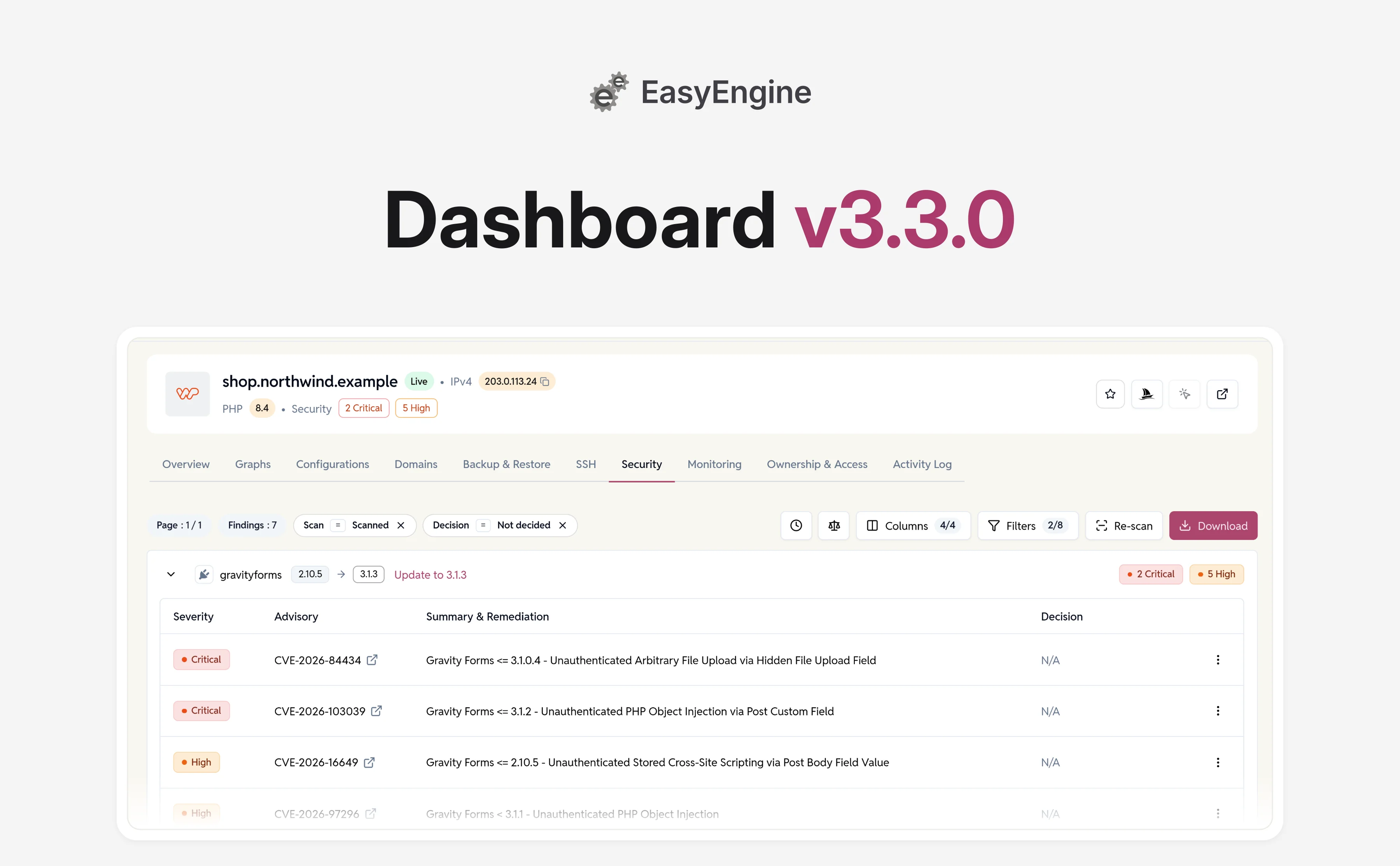
Security Advisories now cover WP Cloud sites 🛡️
WP Cloud sites now get the same checks as EasyEngine sites. Once a day, the Dashboard reads the WordPress core version, plugins and themes of each live, connected WP Cloud site. It matches them against known vulnerabilities, as our Security Advisories post describes.
- Where it shows up: a WP Cloud site now has a Security tab and a security badge in its header, like an EasyEngine site.
- Act on it: update a vulnerable plugin or theme from the report. Organization owners, admins and managers can also snooze or accept a finding. WP Cloud sites are part of the daily security digest too.
- Grouped reports: findings are grouped by plugin, theme or WordPress core, with the installed version, the version that fixes it and an Update to … button on the group. Server and organization reports group them by site first.
- Jump to the findings: the severity badges in a site’s header, such as 1 Critical, open its Security tab filtered to that severity. A server’s security summary badges open the matching filtered report too.
See and change who has access to each site and server 🔑
Every EasyEngine site, WP Cloud site and server now has an Ownership & Access tab. It lists everyone who has access to it, with their Role and Access Type. You no longer have to work it out from roles and shares.
- Who has access: the list shows the owner, the organization’s owners, admins and managers, and anyone the site was shared with directly. Access types are Full Access, Write Access and Read Access, and an info icon next to each says where that access comes from.
- Give access: on a site, its owner and the organization’s owners, admins and managers can click Add New, pick members of the organization, and grant Write Access or Read Access. Write Access granted this way lets someone change settings and run operations, but not manage access or ownership.
- Change or remove it: Change access and Remove access in a person’s row menu cover direct shares. Removing asks you to type
removefirst. Admins and managers get their access from their organization role, which you change on the Users screen. - Hand a site over: Transfer ownership on the owner’s row, or Make owner on someone else’s, moves the site to any member of the organization. This replaces Change Owner in the Configurations tab. A WP Cloud site must be live and not restoring. A disconnected or locked site can’t change hands.
- Hand a server over: organization owners and admins can transfer a server to another owner or admin of the organization. A server’s tab lists its owner, the organization’s owners and admins, and anyone given SSH access to it. You can’t add or change access there, only transfer ownership. A disconnected or locked server can’t change hands.
Everyone else who can open the site sees the list as read-only.
Find what needs attention from the dashboard 🚦
The dashboard now opens with a Needs attention card. It counts what needs action across your organization, and each count opens the matching filtered list. Organizations with reseller plans find it under the dashboard’s Infrastructure view.
- Sites: Failed and Disconnected sites.
- Security: sites with Critical advisories, High advisories or Pending updates.
- Servers: Unhealthy and Disconnected servers.
Rows with nothing to report are hidden. When everything is clear, the card says “Nothing needs attention right now.” The bars in Site Count by Status, Server Count by Provider and Running Server Count by Provider now open the filtered list too. Each chart also says what it counts, such as “All sites except archived”.
Read WordPress debug logs in the Dashboard 🐞
You can now turn on WordPress’s debug log for a live EasyEngine WordPress site and read it without logging in to the server. The site’s owner and the organization’s owners, admins and managers can use it.
- Turn it on: on the site’s Configurations tab, find WordPress debug logging in the Performance & Monitoring card and click Enable. The dialog shows the
wp-config.phpchanges before you confirm. - Visitors do not see the errors: WordPress core, plugin, theme and PHP errors, warnings and notices go to the log file, not to the page.
- Read it: open the Monitoring tab and pick WordPress. Choose how many recent lines to show, then Refresh or Download the whole file.
- Turn it off: logging stays on until someone clicks Disable. The existing log stays readable from Monitoring.
Use the Dashboard on your phone 📱
The Dashboard now fits a phone screen. Lists, tabs, dialogs and forms were reworked for small screens, so you can check on a site or server away from your desk.
- Header and sidebar: the search box folds into an icon, so the menu button stays within reach. The sidebar closes once you pick a page.
- Tabs: a page’s tab row scrolls sideways, with arrows, instead of wrapping.
- Lists: the Sites and Servers lists show each status badge under the name, and the Filters menus fit the screen, with Apply filters kept at the bottom. Copy buttons in the Sites, Servers, Organizations and Users lists, and the actions on notifications, stay visible on touch screens.
- Forms: creating a site shows only the current step’s label. Creating a WP Cloud site stacks the form above the price summary.
- Site and server pages: the details in a page’s header move into a small dialog on a phone.
More improvements and fixes 🧹
The release also includes smaller improvements and fixes for sites, servers, billing and the interface.
Sites
- Configurations: an EasyEngine WordPress or PHP site’s Configurations tab is grouped into four cards, Site Options, Site & Access, Versions & Limits and Performance & Monitoring. Other site types show the first two. EasyEngine and WP Cloud sites now use the same wording for shared settings, such as Refresh site information.
- Logs: every log viewer has the same Refresh and Download controls. EasyEngine site and server logs also let you choose the number of lines.
- Locked sites: a locked site that is also disconnected still shows its locked view.
WP Cloud sites
- Error logs: NGINX error logs on a WP Cloud site’s Monitoring tab load again, with timestamps in the same format as PHP’s error log.
- Connections: actions the Dashboard runs on a WP Cloud site over SSH, such as backup restores and site clones, no longer fail at random right after connecting. The SSH table also fits narrow screens and keeps the password copy button.
- Restores: while a site is restoring, its SSH and Monitoring tabs stay visible, read-only.
- Backups: backup actions have labels for screen readers and compact buttons on small screens.
Servers
- Setup: a new server no longer gets stuck at Provisioned if its details change while it’s being set up.
- System updates: a hung package-list update no longer blocks a server’s security updates. New servers get the fix at setup, and existing servers with Weekly system updates turned on get it on their next run.
- Actions: server actions that need an organization admin, such as Reboot and Decommission, are disabled for other roles instead of failing when clicked. A direct link to a tab you can’t use no longer opens it.
Organizations and access
- Switching organizations: you stay on the page you were on if you can open it in the other organization. Otherwise you land on the dashboard.
- Creating an organization: it no longer times out. If the organization can’t be saved after checkout, nothing is left half-created.
Billing
- Errors: if the Dashboard can’t load your subscription status, Billing says so, instead of telling you that you can’t view billing.
- Forms: the billing profile form points to each missing field, such as “Postal code is required”.
Emails
- Greetings: emails no longer greet you as “Hello None” when a name is missing.
Interface
- Headers: site and server pages have a redesigned header, with copy buttons for details like the server IP.
- Dark mode: better contrast and colors throughout.
- Dialogs: the confirmations to archive a site, decommission a server, remove access, clear a debug log and remove a custom domain now show a single red button. The header no longer jumps when a dialog or menu opens.
- Navigation: pages you can’t open no longer flash before you’re redirected. The header and sidebar stay in place as you move between pages.
Security
- Organization data: stricter checks keep each organization’s sites, backups, billing and settings scoped to it.
- Stored credentials: WordPress admin, database and HTTP authentication passwords for EasyEngine sites are stored encrypted, and the Dashboard shows them only when you ask.
- Inputs: values that reach your servers, such as backup settings and HTTP authentication details, are validated before they’re used.
Get started with EasyEngine Dashboard v3.3.0
EasyEngine Dashboard v3.3.0 is available to all users, no action required. The Ownership & Access tab is on every site and server page.
To see who has access to a site, open it, select Ownership & Access, and use Add New or a person’s row menu to change it. To see what needs action across your organization, open the dashboard and select a count in Needs attention.
We would love to hear what works for you, and what you would like to see next.
Frequently asked questions
Who can change access to a site in EasyEngine Dashboard?
The site’s owner and the organization’s owners, admins and managers can. They use Add New, Change access and Remove access on the site’s Ownership & Access tab. They can grant Write Access or Read Access to members of the organization. People who aren’t in the organization have to be invited from the Users screen first.
Can I transfer a server to someone else?
Yes, if you’re an owner or admin of the organization. Open the server’s Ownership & Access tab and use Transfer ownership on the owner’s row. The new owner must be an owner or admin of the organization. You can’t grant or change access on a server’s tab, only transfer ownership.
Do I need to do anything to scan my WP Cloud sites?
No. Once a day the Dashboard scans each live, connected WP Cloud site. Findings appear on the site’s Security tab and in the daily security digest. A disconnected site keeps a report based on the last inventory collected before it disconnected.
Does WordPress debug logging show errors to my visitors?
No. When you click Enable, the Dashboard sets WordPress to write errors, warnings and notices to its debug log without displaying them. You read the log on the site’s Monitoring tab, where you can show the latest lines or download the whole file. It works on EasyEngine WordPress sites and stays on until you click Disable.
Links: EasyEngine Dashboard Features | EasyEngine x WP Cloud | Get in touch
On this page
Leave a Reply