
Before a bulk WordPress core update runs, you can now review every site it will touch and choose which ones to update. EasyEngine Dashboard v3.2.0, released on October 20, 2026, adds that review step to bulk updates for one server or a whole organization. A failed CI/CD setup also no longer marks a new site as failed.
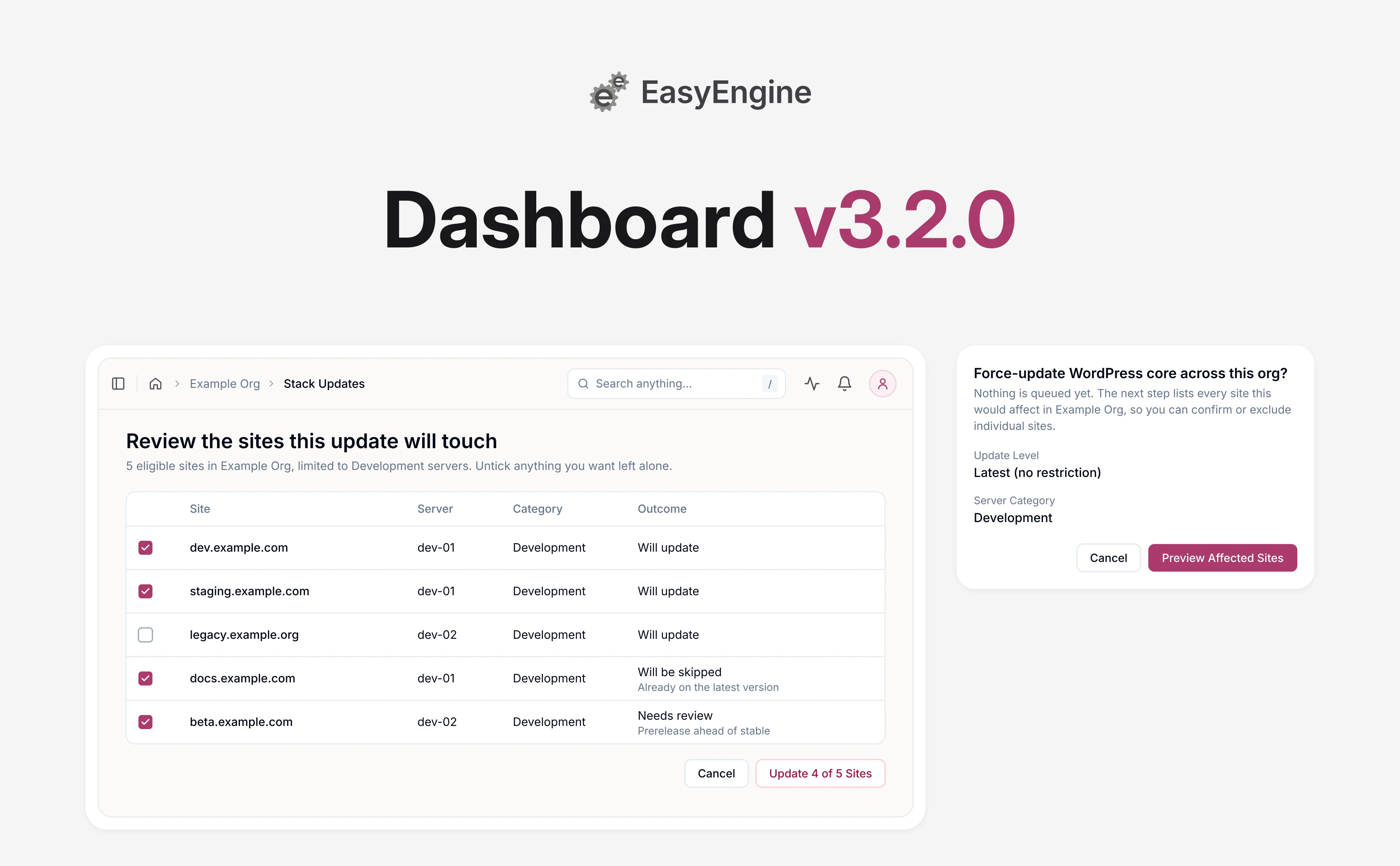
Review bulk WordPress updates before they run 🔍
You now preview the sites a bulk update will touch, untick any you want to leave out, and only then confirm. Bulk WordPress core updates arrived in EasyEngine Dashboard v3.0, and until v3.2.0 they queued an update for every eligible site in one step. Reviewing first lets you roll a WordPress release out in stages.
Organization owners, admins and managers start a bulk update from one of two places:
- One server: Update all WordPress sites on this server, in the Danger Zone of the server’s Configurations tab, with the Update All Sites button.
- The whole organization: Update WordPress Version, in the WordPress Settings card on the organization’s Stack Updates tab.
Both then take the same steps:
- Choose the scope: pick the Update Level and click Preview Affected Sites. Nothing runs yet.
- Stage the rollout by server category: the organization-wide dialog also has Server Category. Choose Production or Development to include only sites on your organization’s servers in that category, or All categories for every site in the organization. Update your development sites first, check them, then repeat for production.
- See every site: the review lists each site’s current WordPress version and the version it will move to. Each site’s outcome is Will update, Will be skipped or Needs review, and the last two give a reason. CI/CD sites are marked. An organization-wide review also shows each site’s server and category.
- Choose the sites: every site starts ticked. Untick any site you want to leave alone in this round. To find a site in a long list, search it by domain.
- Confirm: type the organization name or server hostname, then click the button that counts the ticked sites, such as Update 12 of 14 Sites.
When you confirm, the Dashboard checks each ticked site again and updates only those that still need it. A site marked Will be skipped or Needs review stays untouched even when ticked, unless it becomes eligible before you confirm. A site that was not in the review is never added to the run, even if it becomes eligible later. A summary afterwards shows what was queued.
The daily auto-updates you can turn on under Manage Auto-Updates have no review step and work as before.
CI/CD setup no longer fails site creation 🛟
When you create a WordPress site with CI/CD, the Dashboard now sets up the repository in a separate step, after the site is live. Before v3.2.0, a failed CI/CD setup marked the whole site as failed, even though the site itself had been created.
A common cause is a repository without the required deployment files: the deploy workflow .github/workflows/deploy_on_push.yml and the hosts file .github/hosts.yml. If the setup fails:
- The site stays live: CI/CD is switched off on the site. If multi-branch deployments were on, they are switched off too.
- You hear about it: the site’s owner and the organization’s owner, admins and managers get a CI/CD setup failed notification in the Dashboard, per their notification preferences. It names the repository, the branch and any missing files.
- It’s on record: the failure is also written to the site’s activity log.
- You can try again: once the repository is fixed, organization owners and admins can turn CI/CD back on from the site’s Configurations tab. They then enter the repository and branch again.
The check for those two files also got stricter. A repository that already has .github/hosts.yml but no deploy workflow is now caught during setup.
Fixes worth knowing 🩹
Three smaller fixes in v3.2.0 cover WP Cloud and billing.
- WP Cloud connectivity checks: Recheck Connectivity now appears in Active Operations while it’s queued or running, and stays on the Operations page afterwards.
- WP Cloud site settings: unsaved changes are no longer overwritten when live updates refresh the page.
- Billing: the invoices, purchases and payment methods tables now have pages.
Get started with EasyEngine Dashboard v3.2.0
EasyEngine Dashboard v3.2.0 is available to all users, no action required. The review step appears the next time you start a bulk WordPress core update.
To stage a WordPress release across your organization, open its Stack Updates tab and click Update WordPress Version in the WordPress Settings card. Pick the Update Level, set Server Category to Development and click Preview Affected Sites. After you have checked those sites, run it again with Production.
For a single server, start from Update All Sites in the Danger Zone of the server’s Configurations tab.
We would love to hear how the review step works for your rollouts, and what you would like to see next.
Frequently asked questions
Who can run a bulk WordPress update in EasyEngine Dashboard?
Organization owners, admins and managers can run one, on a single server or across the whole organization. A server’s update starts from Update All Sites, and an organization’s from Update WordPress Version. Both open the same review. Only organization owners and admins can change the daily auto-update level under Manage Auto-Updates.
Do the daily WordPress auto-updates get a review step too?
No, auto-updates have no review step and work as before. An organization owner or admin chooses the level under Manage Auto-Updates, such as Security patches only or Minor releases. Each daily check then updates every eligible site in the organization up to that level. To choose sites first, run a bulk update.
What happens if a site becomes eligible after I review the list?
It is not added to that run. When you confirm, the Dashboard works only from the sites you left ticked, and checks each of them again before queuing an update. A ticked site that no longer needs one is skipped, and the summary shows what was queued and what was skipped. Start another bulk update to cover the newly eligible site.
What happens to a new site when its CI/CD setup fails?
The site stays live, with CI/CD switched off. Multi-branch deployments are switched off too if they were on. Once the repository is fixed, an organization owner or admin can turn CI/CD back on from the site’s Configurations tab.
The site’s owner and the organization’s owner, admins and managers get a CI/CD setup failed notification, per their notification preferences. It names the repository, the branch and any missing files, such as the deploy workflow .github/workflows/deploy_on_push.yml.
Links: EasyEngine Dashboard Features | EasyEngine x WP Cloud | Get in touch
On this page
Leave a Reply