
Organization owners, admins and managers can now update WordPress core across a server or a whole organization. EasyEngine Dashboard v3.0, released on October 12, 2026, also lets you restore WP Cloud sites from a backup and watch site, server and WP Cloud jobs while they run.
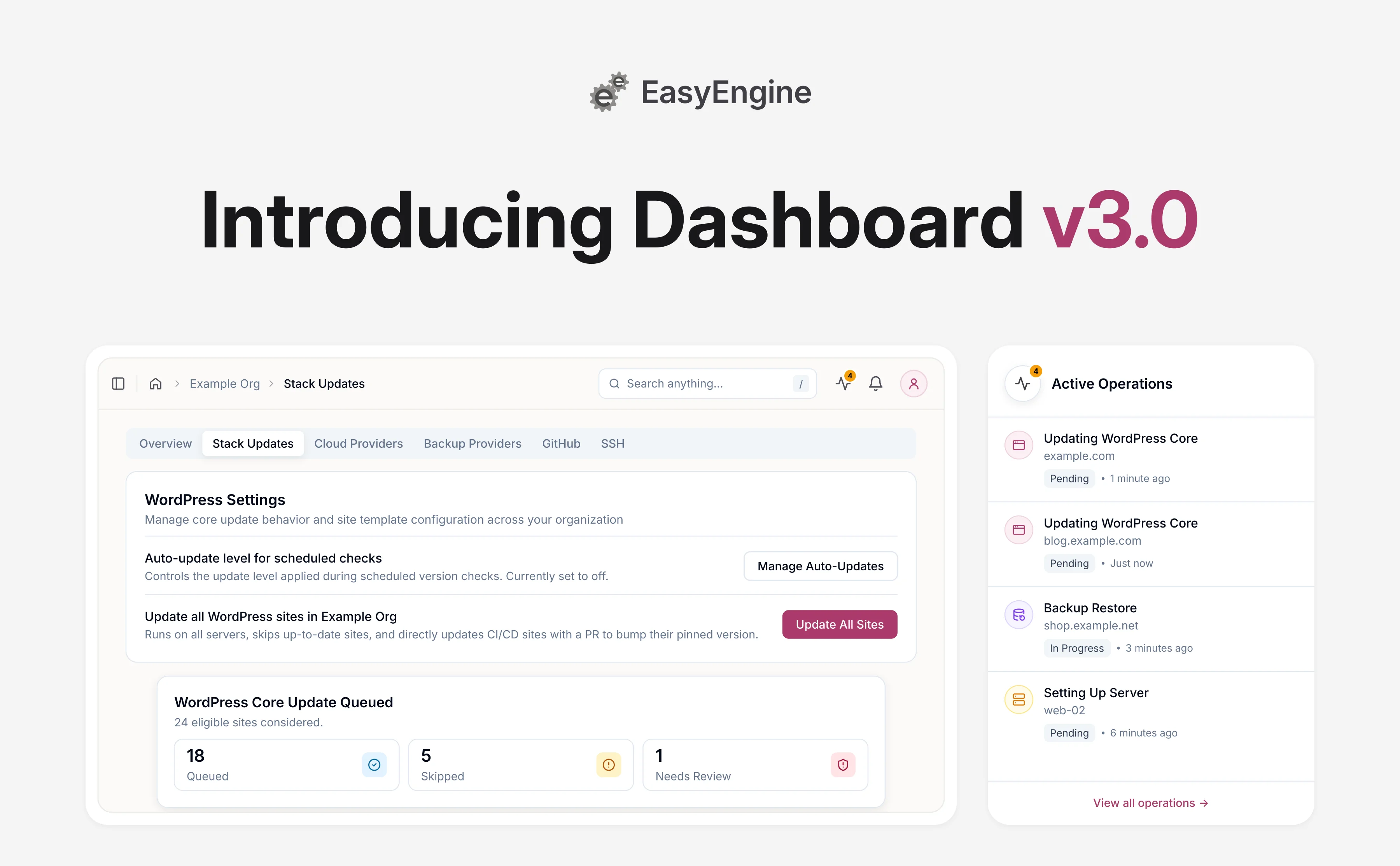
Update WordPress everywhere at once 🔄
When a WordPress security release lands, updating one site at a time is too slow. Since v3.2.0, a bulk update opens a review of affected sites before anything is queued. Choose the update level, preview the sites, untick any you want to leave out, and confirm the selection. The Dashboard checks the selected sites again before queueing their updates.
- Start from a server: Update all WordPress sites on this server, on the server’s Configurations tab, opens the review for that server’s live WordPress sites. Sites already up to date are marked to be skipped.
- Start from the organization: Update WordPress Version, on the organization’s Stack Updates tab, opens the same review across all its servers.
- Choose how far to go: straight to the latest release, or only security patches or minor releases within each site’s current branch.
- Patch automatically: organization owners and admins can turn on a daily auto-update under Manage Auto-Updates on the same tab, at the security, minor or major level. It’s Off by default, which keeps the old behavior: site owners are only notified. At the security and minor levels, a site that can only become secure by moving to a new major version is held for manual review instead.
CI/CD sites are covered too. When the site’s deploy workflow pins the WordPress version in the supported format, the Dashboard opens a pull request that bumps it. Merge it so the next deploy doesn’t undo the update. Other setups may need the pin updated by hand.
More control over WP Cloud sites ☁️
WP Cloud sites can now be restored from a backup, and a failed on-demand backup no longer goes unnoticed. Egress rules let you decide which outbound connections a site may make.
- Restore from a backup: WP Cloud sites get a Restore action under Backup & Restore and show a Restoring status until the restore finishes.
- No more silent backup failures: a rejected on-demand backup, for example when you’ve hit WP Cloud’s limit, now notifies you and appears in the site’s activity log.
- Egress rules: on the site’s Configurations tab, allow or deny outbound traffic by protocol, port and destination. They cover outbound traffic only and are not a web application firewall.
See what the Dashboard is doing 👀
You can now follow site, server and WP Cloud jobs while they run. Disconnected sites and servers keep their last known details, and team alerts reach organization managers too.
- Active Operations: a tray in the header shows running site, server and WP Cloud jobs with live status and the current step, and the Operations page keeps the history.
- Disconnected doesn’t mean blank: a disconnected site or server still shows its last known details, and servers keep their graphs.
- Team alerts for managers too: events such as a failed backup or a new site now reach organization managers as well as the owner and admins. Each of you can switch on email delivery per type from the Settings tab of your profile. Since v3.1.0, you set these preferences per organization.
Servers and white-label 🧰
New and imported servers can run Ubuntu 26.04, and white-labeled dashboards carry your branding further.
- Ubuntu 26.04: create new servers on it at AWS, DigitalOcean and Hetzner, or import existing ones, with or without EasyEngine.
- Your branding, everywhere: white-labeled dashboards load with your brand and fonts, and support emails carry your branding too.
v3.0 moves the Dashboard to a new major version of the platform it’s built on, with existing data migrated for you.
v3.0 also brings Security Advisories, which gets a post of its own.
Get started with EasyEngine Dashboard v3.0
EasyEngine Dashboard v3.0 is available to all users, no action required.
A good first run is one server: open its Configurations tab and choose Update all WordPress sites on this server. Review the affected sites, leave out any you want to update later, and confirm. Follow the queued work in Active Operations. When that run looks right, use the organization’s Stack Updates tab to review a wider rollout.
We would love to hear what works for you, and what you would like to see next.
Frequently asked questions
Who can run a bulk WordPress update or turn on auto-updates?
Organization owners, admins and managers can start a bulk update from a server’s Configurations tab or the organization’s Stack Updates tab. Only organization owners and admins can change the level under Manage Auto-Updates, so a manager can run an update but cannot switch on the daily one. Other members can do neither.
Do I need to change anything to use EasyEngine Dashboard v3.0?
No. When v3.0 moved the Dashboard to a new major version of its platform, existing data was migrated for you, so there is nothing to install. Bulk WordPress core updates run only when someone starts one or an owner or admin picks a level under Manage Auto-Updates, which starts at Off.
Do bulk updates work with CI/CD sites deployed from GitHub?
Yes. The Dashboard updates a CI/CD site on its server like any other site, then checks the WP_VERSION pin in the site’s deploy workflow on GitHub. If the pin names an older version, it opens a pull request that bumps it, and you merge it before the next deploy.
A workflow that deploys latest, or sets WP_VERSION with a GitHub Actions expression, needs no change. After a run you start, a notification lists the outcome for each site.
Do bulk WordPress updates include WP Cloud sites?
No. Bulk WordPress core updates cover live WordPress sites on your EasyEngine servers. They leave out disconnected sites and sites that are already up to date. WP Cloud sites get their own v3.0 changes instead: Restore under Backup & Restore, and Egress Rules on the site’s Configurations tab for outbound traffic.
Links: EasyEngine Dashboard Features | EasyEngine x WP Cloud | Get in touch
On this page