
EasyEngine v4.14.0 is out, and it changes what a failure leaves behind. If a restore fails before the backup is fully in place, the site goes back to how it was before the restore started. If a global service that ee cli update recreates doesn’t come up, the update rolls back to the previous images. Every backup archive is tested before it’s uploaded.
Before updating, read the update notes below: older EasyEngine versions don’t list or restore backups made by v4.14.0, so update every server that restores them.
Restores that roll back
Before v4.14.0, a restore that failed partway could leave a site with some files, config or database from the backup and the rest from before, and still report success.
Now, if a step fails before the backup is fully in place, the site goes back to how it was before the restore started. Before it changes anything, a restore checks that the extracted backup and a copy of the current database fit next to the site. It extracts the backup there and keeps the current files, database and configuration until the restore is complete. The restored nginx configuration has to pass nginx -t.
The container restart at the end comes after that point, so a failed restart is not rolled back. The restored site stays in place, and ee site restart example.com starts it again.
			# Restore this server's newest backup (or the newest old-layout one if it has none)
ee site restore example.com
If a restore is killed before it finishes, ee site backup refuses to back up the half-restored site. Remove the lock file the error names, then run ee site restore example.com: it rolls the earlier restore back first, then restores the backup.
Backups tested before upload
Every backup archive is tested before it’s uploaded, and older backups are pruned only after a successful backup. A backup whose database dump fails or is empty stops before upload.
Once a backup has fully uploaded, a later failure in the same run does not delete it. An upload that stops partway is not listed or restored, and the next successful backup removes it.
- Retention: EasyEngine keeps the newest
no-of-backupsbackups of each site in this server’s folder and deletes older ones. A value that isn’t a whole number of at least 1 falls back to the default of 7, with a warning. - WordPress backups: they hold all of
app/except WordPress core and tool caches, so files such asrobots.txt, verification files and.user.iniare included.
			# List the backups of a site
ee site backup example.com --list
To set up S3 storage for backups, see Back up and restore sites.
Container updates that roll back
Before v4.14.0, if an update was interrupted while EasyEngine was replacing its shared services, every site on the server could stay down until someone recreated them by hand.
Now, if a global service that ee cli update recreates doesn’t come up, the update rolls back to the previous compose file and images. An interrupted update that you run again keeps its first snapshot, so it can still roll back.
nginx-proxy, the shared database and Redis each have to pass a readiness check when the update recreates them, and a recreated cron or New Relic daemon has to start. After a rollback, the server stays on the version it had, and ee cli update ends with “The downloaded PHAR is broken”. The real error is printed above that line.
The database image is unchanged in this release, so an update from v4.13.3 leaves the shared database running as it is and doesn’t check it.
Each recreated service gets up to a minute to become ready, and the database five minutes. global-service-ready-timeout (seconds) in /opt/easyengine/config/config.yml replaces the wait for every service, the database included. If a slow database start makes an update roll back, set it above 300, for example with ee config set global-service-ready-timeout 600.
HTTP until Let’s Encrypt succeeds
A site whose Let’s Encrypt certificate couldn’t be issued stays on plain HTTP. EasyEngine prints the command to enable SSL, which you run once the issue is fixed.
- Manual DNS-01 validation: the site stays on HTTP until
ee site ssl-verifysucceeds, including during the container update. - Cloudflare DNS-01 validation: EasyEngine waits up to two minutes for the zone’s authoritative nameservers to show the record.
- WordPress URLs: they follow the scheme the site is served over, including the subsites of a subdomain multisite (mapped domains keep their scheme).
			# Enable Let's Encrypt SSL once the issue is fixed
ee site update example.com --ssl=le
Host logs with a size cap
Before v4.14.0, a runaway logger on the host could grow the system’s mail and syslog files without limit until the disk filled, and a full disk can stop the database every site depends on.
Now, on Linux, each stanza of /etc/logrotate.d/rsyslog (and /etc/logrotate.d/syslog, where it exists) that has no size limit yet gets a 2 GB cap. The update writes it as maxsize 2G, and it also adds a dateformat line, so a log can rotate more than once a day.
Logrotate is set to run hourly. Where systemd’s logrotate.timer exists, a drop-in does this, and a timer you have stopped stays stopped. Elsewhere, an /etc/cron.hourly/ee-logrotate job runs the daily /etc/cron.daily/logrotate script.
The original rule is saved in /opt/easyengine/.backup/logrotate/. This happens once: if you change or remove the cap later, updates leave your version alone.
EasyEngine’s own logs get a 1 GB cap, and rotating one no longer needs as much free space as the log itself.
Control panels that disable PHP functions
In v4.14.0, ee site commands run on servers whose control panel disables PHP’s pcntl_* functions, as HestiaCP does. Without pcntl_signal, a site command interrupted with Ctrl+C is not rolled back. If a function ee needs is disabled, ee stops before running the command, and the error names the function and the ini file that disables it.
Only ee site share needs shell_exec. ee cli info shows a “PHP requirements” row. To fix the error, remove those functions from disable_functions for the PHP CLI, in that file or in the override file the error suggests. ee cli update still runs in the meantime, as long as proc_open and the other functions it needs to run commands are available.
Stack updates
Core services:
| Component | Previous version | Updated version |
|---|---|---|
| Nginx (OpenResty) | 1.31.1.1 | 1.31.8.1 |
| Postfix | 3.8.3 | 3.11.7 |
| NewRelic Daemon | 12.11.0.40 | 12.12.0.41 |
| Alpine (NewRelic Daemon) | 3.24.2 | 3.24.3 |
The nginx-proxy, Redis and cron images are rebuilt without a version change, nginx-proxy and cron with operating system package updates. The PHP 8.1 to 8.5 images are rebuilt on the same PHP versions. MariaDB, Mailhog and the PHP 5.6 to 8.0 images are unchanged.
Notable bug fixes
- phpRedisAdmin:
/ee-admin/pra/no longer returns a 403 error with phpRedisAdmin 1.27.0 and newer. It stays behind the admin-tools login (one step after the update, below). - PHP version switch:
ee site update --phppulls the new image before it stops PHP, and rolls back if the switch fails. - Postfix: the image ships
/etc/aliases, so local mail topostmasteris delivered to root inside the container instead of staying in the queue. - Session settings:
session.upload_progress.enabledis Off in the PHP 8.1 to 8.5 images. Restoring a backup made before v4.13.3 turns it Off again in the site’scustom.ini, unless that file sets it.
Before you update
The first list applies to every server. Each group after it applies only if it matches your setup.
Every server:
- Back up first:
ee site backup example.comfor the sites that matter. - Disk space: the update does not start with less than 5 GB free where EasyEngine and Docker store their data.
- Image downloads: each PHP version your sites use gets a new image of about 1.5 GB on disk. Old images are removed only after the update finishes, so keep more space free if your sites use several PHP versions.
- Update session: run the update in
tmuxorscreen. - Downtime: running global services and enabled sites move to the new images. Every site on the server is unreachable for a few seconds while nginx-proxy is recreated.
- Site containers: a temporary container keeps each site serving while its containers are recreated, but plan for a brief interruption per site.
If you back up sites with ee site backup:
- Older EasyEngine versions: they don’t list or restore backups made by v4.14.0, for any site type. Without
--id, they restore the newest old-layout backup instead. Update every server that restores these backups. - New location: new backups go to
<rclone-path>/<site>/<host-id>/<backup-id>. The host id is created on the server’s first backup or restore and kept in the EasyEngine database. To choose it, setbackup-host-idin/opt/easyengine/config/config.yml. A reinstall starts a new host id, and an invalidbackup-host-idstops backups and restores with an error. - Existing backups: they stay where they are and can still be listed and restored. Without
--id,ee site restore example.comtakes this server’s newest backup. If this server has none, it takes the newest old-layout one, with a warning. - Another server’s backups: restore one with
--id=<host-id>/<backup-id>.ee site backup example.com --listshows them in that form. - Replacing a server: set
backup-host-idto the old server’s host id, or restore once with--id=<old-host-id>/<backup-id>. Do not give two running servers the same host id, since they would prune and restore each other’s backups. A server copied with its EasyEngine database has the same host id. - Scripts: scripts that build
<rclone-path>/<site>/<backup-id>paths need the host directory added. - Symlinked uploads: if a WordPress site’s
wp-content/uploadslinks outside the site directory, the backup holds only the link, with a warning. Back up those files separately. - Old-layout backups (optional, later): they are not pruned automatically, since they may belong to another server on the same
rclone-path. Remove them by hand once you no longer need them, as shown below.
			# List the old-layout backup ids of a site, such as 1794836000_2026-11-16-13-33-20/ (host id folders are listed too)
rclone lsf --dirs-only <rclone-path>/example.com/

# Optional, once you no longer need it: remove one old-layout backup (never a host id folder)
rclone purge <rclone-path>/example.com/<backup-id>
If you restore sites:
- Whole
app/directory: a restore replaces all of the site’sapp/directory, so files created after the backup are removed. For WordPress this applies to backups made by v4.14.0; the restore downloads WordPress core again at the backup’s version. Older WordPress backups replacewp-config.php,wp-content, WordPress core and the database, and leave the site’s other files as they are. - Free space: a restore needs room next to the site for the extracted backup and a copy of the current database, on top of the download, and stops before changing anything when that space is not there.
- Database: a restore imports the backup’s tables. Tables created after the backup stay in the database.
- Mounts: a restore stops before changing anything while something is mounted inside the site’s
app/directory, for example uploads. Unmount it first.
If a global service is stopped or a site is disabled:
- Stopped global services: a stopped nginx-proxy, Redis or New Relic daemon keeps its old image.
ee service enable <service>recreates it on the new image. - Disabled sites: the update moves their compose files to the new images, so
ee site enable example.comstarts them on the new images without--refresh. If the update warns that it could not update a disabled site’s compose file, runee site enable example.com --refresh.
If sites run PHP 8.4, 8.5 or latest:
- Deprecated session lines: the update removes the deprecated
session.sid_lengthandsession.sid_bits_per_characterlines from each site’s php.ini and saves the previous file as/opt/easyengine/.backup/session-sid-settings-<date>-<time>/<site>/php.ini, where backups and restores don’t touch it. It warns when a removed line held a value you had set yourself. If it cannot edit a php.ini safely, for example a symlinked file, it leaves the file as it is and warns: remove the two lines by hand in that case.
If the host runs Debian or Ubuntu:
- rsyslog package updates: EasyEngine now edits the package’s
/etc/logrotate.d/rsyslog. If a later rsyslog package changes that file, automatic package updates can hold that rsyslog update back, and a manual update asks which version to keep. In that case, update rsyslog by hand, then keep the installed version, or take the package’s and addmaxsize 2Gback to each stanza.
			# Update rsyslog by hand when a package update is held back
sudo apt-get install --only-upgrade rsyslog
If you use phpRedisAdmin, after the update:
- 403 error: if
/ee-admin/pra/returns a 403 error, runee admin-tools enable example.com --forceonce.
Update to the latest version
Using EasyEngine Dashboard? The update notes apply once a server runs v4.14.0. ee cli version on the server shows which version it runs, or ask our team.
For servers you manage directly, log in with root access and run:
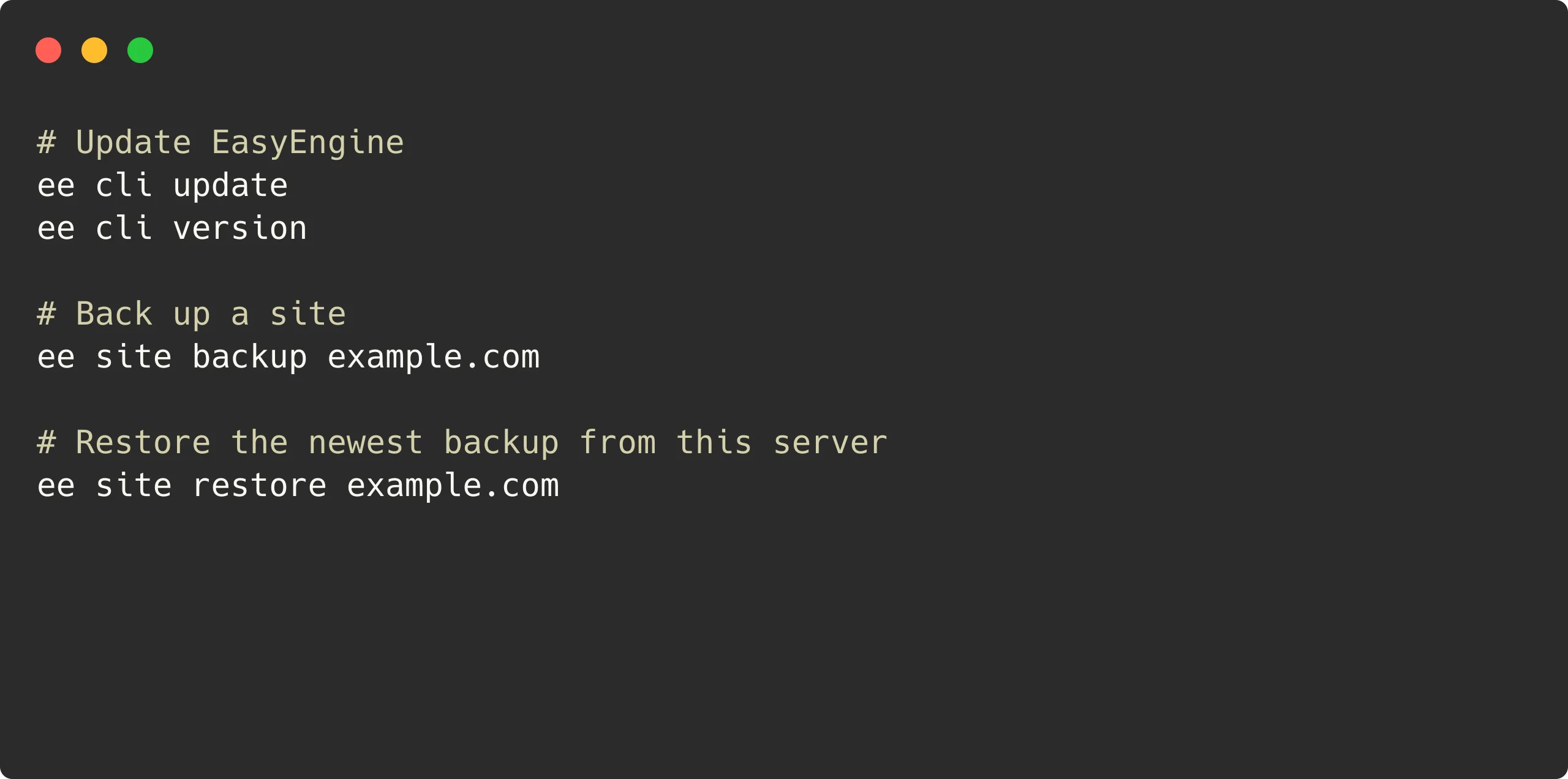
			# Update EasyEngine
ee cli update

# Check the installed version
ee cli version
ee cli version shows EE 4.14.0 once the update has finished.
Links: v4.14.0 release | Documentation | GitHub
On this page
Leave a Reply