
Organization owners and admins can now bring their WP Cloud sites in EasyEngine Dashboard up to date, including sites created or deleted outside the Dashboard through the WP Cloud API, a CI/CD pipeline or another tool. Re-sync WP Cloud sites lists the sites new on WP Cloud and those it has deleted. Review them, then import and archive the ones you choose in one step, or turn on the daily sync so the Dashboard does it once a day.
Backups to Alibaba Cloud OSS are fixed as well, and every organization can now pick the Internal site type for WP Cloud sites.
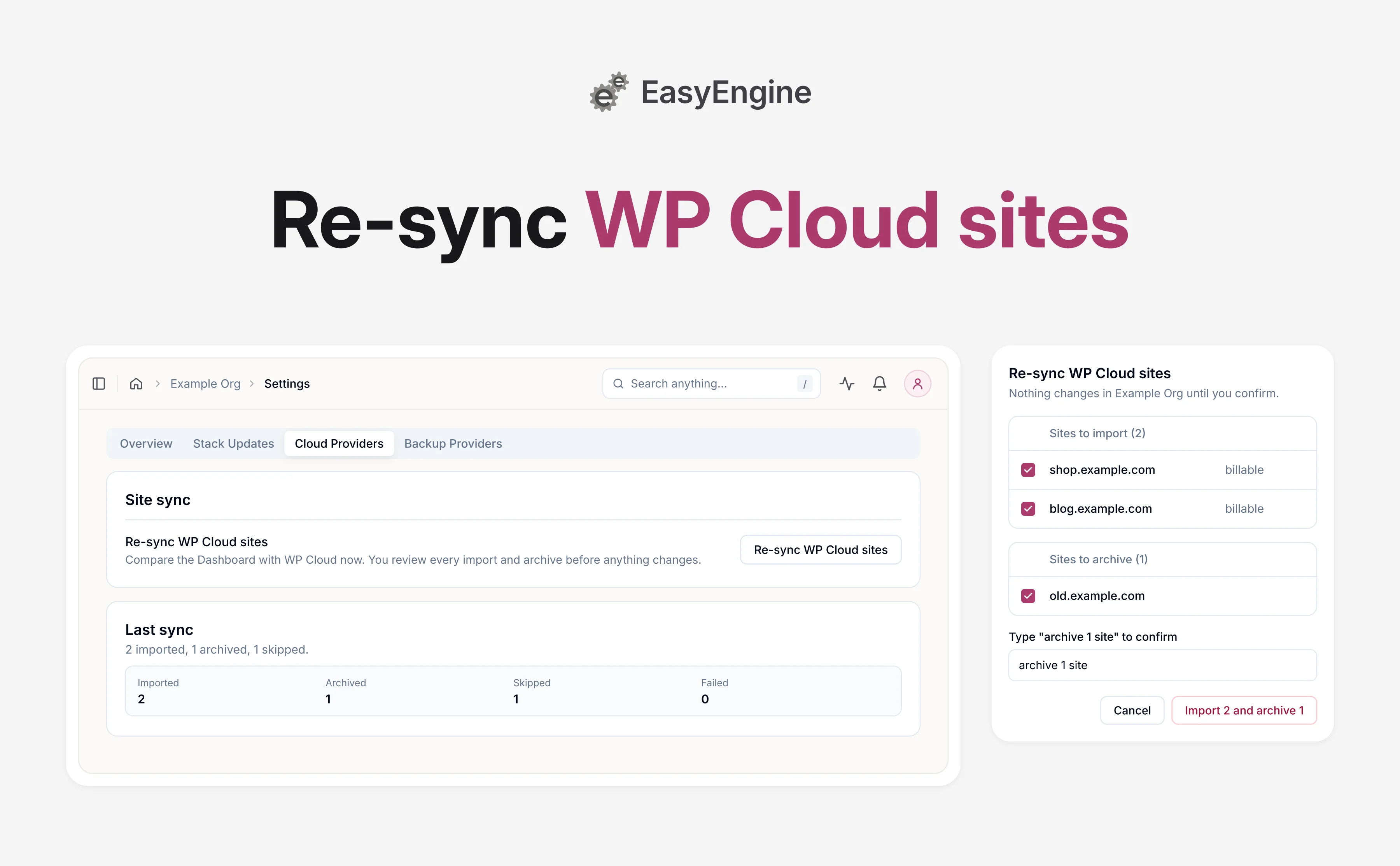
Import new WP Cloud sites and archive deleted ones
A re-sync compares your organization’s WP Cloud sites in the Dashboard with the sites WP Cloud lists for your saved credentials. It sits under Site sync in Settings > Cloud Providers > WP Cloud.
Nothing changes until you confirm. New sites start ticked while your plan has room. Sites to archive start unticked.
- Import new sites: Sites to import lists the sites WP Cloud has that the Dashboard doesn’t. Each import takes a plan slot, and on a plan with a site limit the list shows how many are left. You own each site you import.
- Archive deleted sites: Sites to archive lists the sites WP Cloud no longer has. The Dashboard rechecks each ticked site with WP Cloud and archives it only if WP Cloud confirms it is gone. Archiving frees the plan slot and cannot be undone, so you confirm by typing a phrase such as
archive 2 sites. - Skipped sites: Skipped lists the sites this re-sync won’t change, each with its reason. A missing site that a migration is still moving onto waits there.
- Shared WP Cloud clients: when several organizations share a WP Cloud client, only the one an owner or admin of the organization above them all picks with Receive auto-imported sites for this WP Cloud client imports new sites, and they start unticked.
- Progress and results: the re-sync keeps running if you close the dialog, as Syncing WP Cloud sites in Active Operations. Afterwards, Site sync shows the last run’s counts and a View details link.
- Failures and notifications: one failed site doesn’t stop the others. The owner and the organization’s own admins get an in-app notification when a sync imports or archives sites, or fails.
- New credentials: saving new WP Cloud credentials now opens this review instead of the old Import Existing WP Cloud Sites dialog.
archive 1 site, and click Archive 1 site; the results then count it as archived.Owners and admins can also turn on Keep WP Cloud sites in sync daily in the same section and save. It is off by default. The daily sync imports up to 25 new sites a day while your plan has room, owned by the organization owner. It archives a site only after it has been missing from WP Cloud for three days.
Other improvements and fixes
The smaller changes cover backups, WP Cloud sites, billing and the interface.
- Alibaba Cloud OSS backups: for a Bucket Endpoint on
aliyuncs.com, server backups and the connection test that runs when you save Backup Providers now use the bucket addressing newer OSS buckets require. If the test failed before, enter your OSS details again and save. - Clearer backup errors: a failed connection test now says when access is denied or the bucket isn’t found, and what to check.
- Site deletion: deleting a WP Cloud site now points WP Cloud at the site’s ID instead of its domain.
- Disconnected status: the three-hourly check no longer marks WP Cloud sites Disconnected when WP Cloud’s list is empty or misses more than one in five of your connected sites and more than three of them.
- Billing: Show More and Show Less now stay in view at the bottom of the plans table as you scroll it sideways on narrow screens, and the buttons for cancelling a scheduled downgrade no longer overflow their dialog.
- Safari: ticking a checkbox no longer shifts the rows around it.
Get started with WP Cloud site re-sync
Everything in this post is now available to all users, and the Dashboard itself needs no action from you.
To try it, open Settings > Cloud Providers > WP Cloud, click Re-sync WP Cloud sites under Site sync, review the lists, adjust the ticks and confirm.
If you would like a hand with your first re-sync, our team is glad to walk you through it.
Frequently asked questions
Who can re-sync WP Cloud sites in EasyEngine Dashboard?
Organization owners and admins can, from the Site sync section under Cloud Providers > WP Cloud in Settings. The section appears once WP Cloud credentials are saved for the organization, and a re-sync uses those credentials. They also turn the daily sync on or off. Others in the organization can’t start a re-sync or change the sync settings.
Does archiving a site in a re-sync delete it from WP Cloud?
No. Sites to archive lists only sites WP Cloud no longer has, and the Dashboard asks WP Cloud about each one again before archiving it. A site that WP Cloud still has, or that has another job queued or running, is skipped. Archiving changes only the Dashboard’s record. It frees the site’s plan slot and cannot be undone.
What happens if my plan has no room for the new sites?
The review shows how many plan slots you have left, and sites past that limit are marked Over plan limit and can’t be ticked. Ticking sites to archive can free slots for imports in the same re-sync. To import the rest, follow the Upgrade your plan link in the review to Billing and move to a larger plan. The daily sync imports only while your plan has room and sends a notification about the sites it couldn’t import.
Can the Dashboard keep my WP Cloud sites in sync automatically?
Yes, once an organization owner or admin turns on Keep WP Cloud sites in sync daily in the Site sync section and saves. It is off by default. The daily sync waits three days before it archives a missing site. If WP Cloud’s list is missing more than one in five of your connected sites, and more than three, it stops and changes nothing.
Links: EasyEngine x WP Cloud | EasyEngine Dashboard Features | Get in touch
On this page
Leave a Reply